Categories
How-To's Tableau Techniques

Advanced What-If Analysis in Tableau

What-if analysis is an extremely powerful tool for decision making. Being able to explore different scenarios and understand the potential impact on your business is critical when deciding if, when, and how to implement changes. But if you have ever tried building this type of tool in Tableau, chances are, you have run into a few limitations.

When your simulations are limited to changing a single data point or a single measure, parameters are a helpful way to calculate the impact of that change. For example, if you wanted to increase the price of all of your products by a specific percentage, you can use a parameter to play with that percentage and see the overall impact. Ok, but what if there is a change in costs that is driving the need to adjust prices? Well, I guess you could use two parameters. But what if those changes aren’t uniform across all of your products? How do you change some, but not others, and how do you apply different changes to different sets of products? Well, at this point, most people will dump their data into Excel and do the work there. But I’m here to tell you that there is a better way.

This technique still leverages parameters, but all of the changes are stored in a single, long, string parameter. You can make as many changes as you want and all of the data is stored in one giant string. Then, there are a number of calculations you can use to parse that string into usable fields.

If you are a frequent visitor to this blog, you probably know that a lot of my blog posts are about building Useless Charts. Funny enough, I figured out this technique when I was attempting to build possibly the most useless chart of all time; a functioning Rubik’s Cube in Tableau. I have since used the same technique in several other other Tableau Public visualizations, including Checkers and the Tableau Drawing Tool. So although we’re going to be walking through a specific use case today, this same technique can be applied to countless other situations. So I’m going to focus mostly on the technique, and less on this specific use case.

What-If Scenario

Here is the scenario we are going to look at today. Our user wants to select a group of stores, and then be able to make the following changes to any Product Category, Product Sub-Category, Manufacturer, or individual Product. The user should be able to

  1. Apply a percentage price change (ex. +/- 10%)
  2. Apply a specific price change (ex. New Price = $5)
  3. Apply a percentage change to units to account for the impact to demand from the price change
  4. Apply a percentage change to unit cost
  5. Measure the impact to Revenue, Cost of Goods Sold, and Profit by Store, by Product Category, and Overall

Well, it just so happens that I recently published a visualization for this exact scenario. I would recommend downloading the workbook from here if you want to follow along. Here is a quick look at that this tool in action.
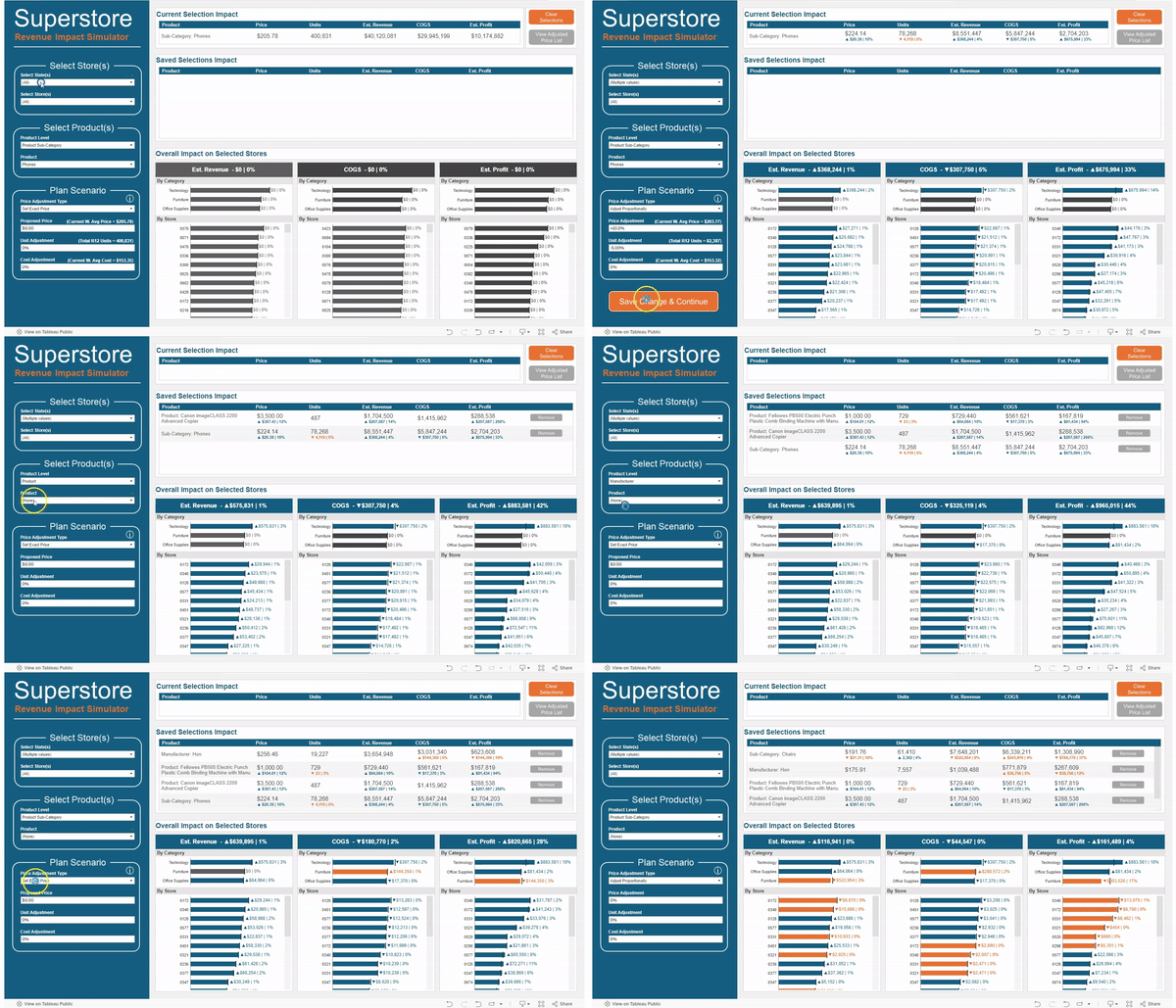
A gif demonstrating the described use case in a dashboard available on Tableau Public

In the GIF above, I made the following changes to all of the stores in Massachusetts and Connecticut

  1. For the Sub-Category “Phones”, I increased the price by 10% and reduced the expected units by 5%
  2. For the Product “Canon imageClass…” I changed the price to $3,500
  3. For the Product “Fellowes PB500 Electric…” I changed the price to $1,000 and reduced the expected units by 3%
  4. For the Manufacturer “Hon”, I increased the Unit Cost by 5%
  5. For the Sub-Category “Chairs”, I reduced the price by 10% and increased the expected units by 4%

In a matter of minutes I was able to make adjustments to different groups of products, change different metrics for each group by different amounts, and then view the overall impact to Revenue, Cost of Goods Sold, and Profit. And all without ever leaving Tableau.

The Data Source

The data for this example is very simple, and can be downloaded here. The granularity for the data source is by store and by product, with 1 record for each store/product combination. We have a few store attributes (State, City, Region, and Store ID), a few product attributes (Category, Sub-Category, Manufacturer, and Product Name), and our measures (Current Price, R12 Units, R12 Sales, and Current Unit Cost)

The Simulation Options

As I mentioned before, this technique can apply to countless scenarios. The technique will stay the same, but the options will change depending on your situation. For my use case, I separated the options into 3 groups; Store Selection, Product Selection, and Scenario Adjustments. Your use case may, and most likely will, call for completely different options. But I will touch on the Sets & Parameters I used for my example use case

Store Selection

For my use case I used two sets; one for selecting state(s) and one for selecting store(s). The reason I chose to use sets instead of filters is so that you could apply the changes to certain stores (and not others) and then view the company wide impact. Keep in mind, that this approach will not let you apply different changes to different stores. All changes will be applied to all of the selected stores. However, if that was a requirement, you could adjust your options to be able to do that.

Product Selection

The requirements for this tool called for being able to adjust prices at 4 different product “levels”, or groups of products. So the first option I added was to select that Product Level. I chose to use an Integer parameter with values 1 to 4, with each number assigned to a different Product Level ( 1=Product Category, 2=Product Sub-Category, 3=Product, and 4=Manufacturer)
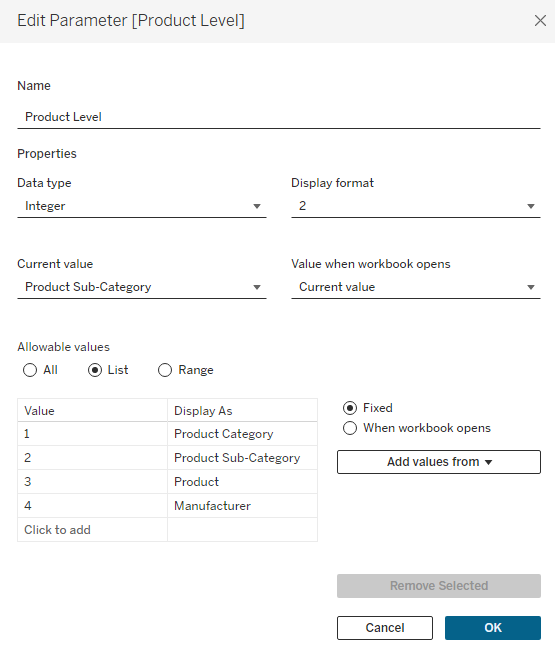
An image showing how the Product Level parameter is configured

Next, I created a simple case statement to return the appropriate values depending on which Product Level is selected and called this [Product]
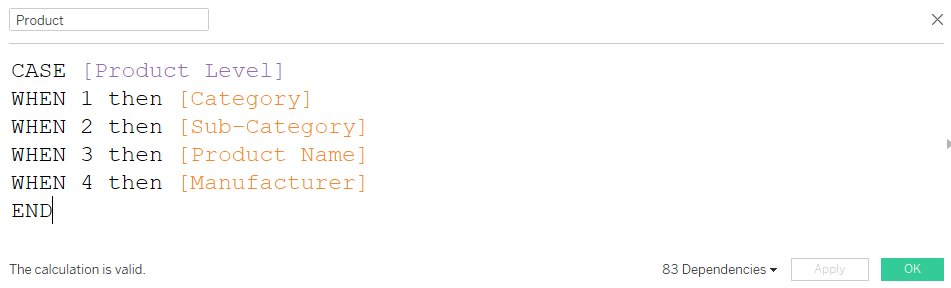
A screenshot of the Product calculation

And finally, I created a set using the [Product] field called [Product Set]. Even if you are using just a single field for your use case (instead of the 4 I have here), you will still want to create a Set to be used for the selection on the dashboard (or you can use a Parameter).

In order to add my Sets to my dashboard (so users could make their selections), they need to be on a worksheet that is on the dashboard. I created a hidden worksheet called “Options” that has all 3 of my sets either on Detail, or on the Filter Shelf (the State Set is on the Filter Shelf so that the options in the Store Set are limited to the selected States). There is also 1 other field on the Filter Shelf that we will revisit later. This is to remove products from the list that have already been adjusted. I added this sheet as a Floating object to my dashboard, and set it so that the X and Y coordinates were 0,0 and the Height/Width were 1,1.

Its important to note that for this technique to work, you must limit the selection for the thing you want to change, in this case [Product], to a single selection at a time. When displaying this Set on the dashboard, make sure to select “Single Value (dropdown)” and in the “Customize” menu, de-select the “Show All Value” option.

Scenario Adjustments

For my use case there were 3 measures that we need to adjust; Price, Units, and Cost. The Price one is a little more complicated than the rest. If you are adjusting the price for an entire Product Category, you would probably want to apply a % change. But if you were adjusting the price for a single product, then you would probably want to enter a specific price. So my use case is built to handle both of these situations.

The first option is to choose how you want to adjust the price, either proportionally (with a % change), or by setting an exact price. Similar to the Product Level parameter, this is an Integer Parameter where 1=Proportional and 2=Exact.
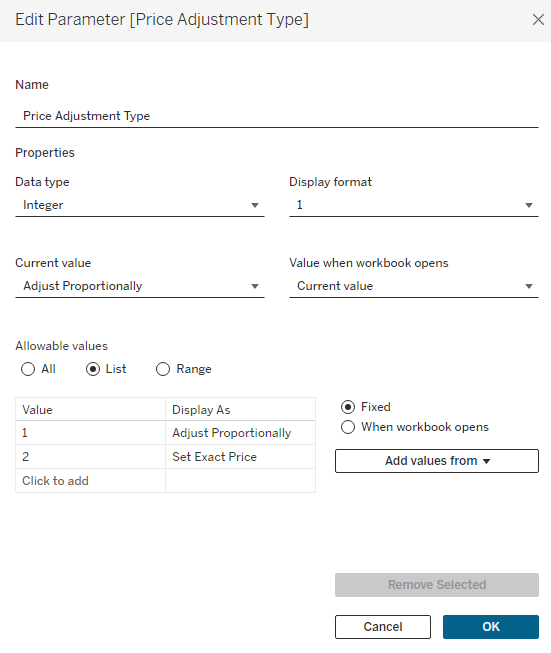
An image of how the Price Adjustment Type Parameter is configured

Next, I have 2 separate parameters for the Pricing Adjustment and I am using Dynamic Zone Visibility to display the appropriate one depending on which Price Adjustment Type is selected. These are both ‘Float’ types, but one is formatted as Currency and one is formatted to display as a percentage.

Finally, I have 2 more ‘Float’ type parameters for my last two options; one for the unit adjustment %, and one for the unit cost adjustment %.

This is completely optional, but for my 3 parameters that are based on % change (proportional price change, unit change, and unit cost change), I wanted to make it a little easier on the user to enter the percentages. For a change of 10.5% instead of having them type .105, I set it up so that they could type 10.5. Visually, I did that with the help of custom formatting, and then I’ll adjust that value with a calculation later on.
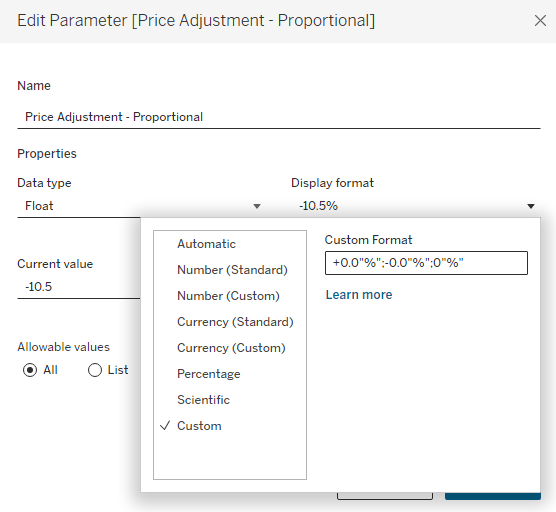
A screenshot showing the Custom Formatting +0.0"%";-.0"%";0"%"

Capturing the Adjustments

Now on to the fun part. We have set up our dashboard with all of the options we want for our users, now we just need to capture their inputs. The first thing we need to do is to create one more parameter to store all of the user selections. I’m going to call this [String – Saved], it’s going to be a String Type parameter, and the default value will be a ‘|’. I would recommend creating a calculated field with just ‘|’ and setting that field in the ‘Value when workbook opens’ option.
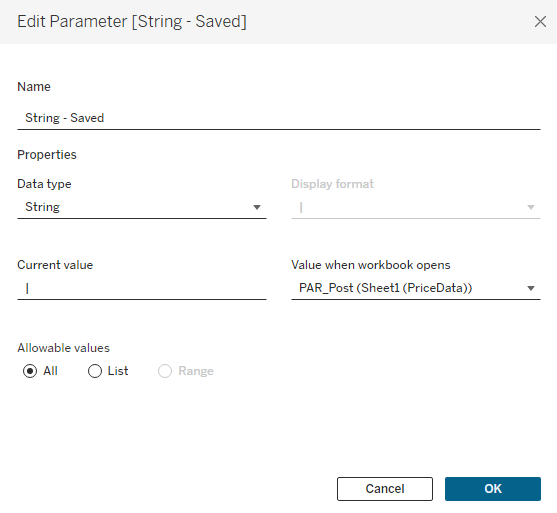
An image showing how the String - Saved Parameter is configured

I’m using ‘|’ because it’s a character that is unlikely to show up in any product names. Each Product (or group of products) that is adjusted will be stored in this string, and they will be separated with a ‘|’. Think of each Product as a section in the string, and that section will contain the Product, and all of the other options set by the user for that Product. These options, within each section, will be separated by another character that is unlikely to appear in the Product Name. I typically use a ‘~’. An example with 2 Products (Sub-Category=Chairs and Manufactuer=Hon) adjusted would look something like this:

Building the String

There are a few things we need to do here. First, we need to create a calculated field to capture all of the current selections by the user. And second, we need a calculated field that combines that value with all of the changes that have already been saved.

String – Current

Here is my calculation to capture all of the user’s current selections. Note, that your calculation will likely look much different. Since this won’t be a copy and paste situation, I’ll walk through the structure of this calculation so you can modify it to fit your needs. Note that because this is a String parameter, you’ll need to Cast all of your numeric parameter values as string using STR(). Also, each line of the calculation, except for the last one, ends with adding ‘~’ to separate that input in the string.
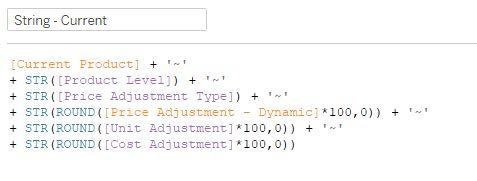
A screenshot showing how the String - Current calculation is constructed for this use case

Line 1 – [Current Product] is a calculated field to capture what is selected in the [Product Set].

Line 2 – This casts the Product Level parameter (which is an integer) as a String. The Product Level parameter is the integer parameter that let’s users choose between Product Category, Product Sub-Category, Manufacturer, and Product.

Line 3 – This casts the Price Adjustment Type parameter (which is an integer) as a String. The Price Adjustment Type parameter is the integer parameter that allows users to choose between adjusting a price proportionally, or setting an exact price.

Line 4 – [Price Adjustment – Dynamic] is a calculated field that returns the value of either the Proportional or Exact parameter depending on what is selected for the Price Adjustment Type, and casts it as a String

*You will notice that this line of the calculation is rounded and multiplied by 100. The same is true with the next two lines. The reason for this is that Tableau does not handle rounding well when you are casting a decimal value as a string. You can round to 0 decimal points just fine, but are not able to round to 2, 3, etc. So this part of the calculation multiplies the value by 100 and then rounds to 0 decimal places (which would be the equivalent of rounding to 2 decimal points once you translate it back to a decimal value later on). If you need to be more precise than 2 decimal places, you can increase this value to 1000, 10000, etc.

Line 5 – This casts the Unit Adjustment parameter (which is Float) as a String

Line 6 – This casts the Cost Adjustment parameter (which is Float) as a String

Now you have a string that captures all of the current selections/options, with each option separated by a ‘~’. Here is an example:

  • Product = Chairs
  • Product Level = Sub-Category (parameter value = 2)
  • Price Adjustment Type = Adjust Proportionally (parameter value = 1)
  • Price Adjustment = +10%
  • Unit Adjustment = -4.5%
  • Cost Adjustment = +2%

Our string would look like this:

Chairs~2~1~1000~-450~200

  • Chairs = The current Product Selection
  • 2 = the Product Level parameter value (Sub-Category)
  • 1 = the Price Adjustment Type parameter value (Adjust Proportionally)
  • 1000 = 10 X 100 rounded to 0 decimal places
  • -450 = -4.5 X 100 rounded to 0 decimal places
  • 200 = 2 X 100 rounded to 0 decimal places

As I mentioned before, this calculation is going to look different depending on your use case, but the format should be the same. It’s the thing your changing + all of the different options you are giving the user, with each piece of the calculation separated by a ‘~’ (or another similarly unused character).

String – Full

This calculation is far simpler, and you should be able to copy and paste this no matter what your set up looks like. All it is doing is taking the [String – Current] value that you just built, and adding it to what has already been saved in the [String – Saved] parameter. So you build a string with all of the current options, then hit the “Save” button to add that string to the rest of the changes. This is how the string continues to build.

Let’s say the string we built above was our 1st change. The result of the [String – Full] calc would be this. It’s just our [String – Current] value with a Post on each end

Image 1 of the String Building Example

Now, let’s say we saved that change and then decided to increase the price of all Phones by 5%. Now our string calculations would look something like this.

Image 2 of the string building example

Now the [String – Current] field has the selections for the Phones that we are currently working on, and the [String – Full] field has the selections for the Phones, and the selections for the Chairs that we already saved.

Saving the String

Now that we have our string, we need to build the mechanism to save it. This is pretty straightforward. You just build a worksheet with some type of button and drag the [String – Full] field to Detail. I’m using a Custom Shape, but you can also use any of the native Tableau Shapes or even Text. Customize it however you would like.

Then add that sheet to your dashboard and add a Parameter Action to update the [String – Saved] Parameter with the [String – Full] Field.

An image showing how the Save_String Dashboard Action is configured

You can also add additional Parameter Actions from this ‘Save’ button. In my sample dashboard I am setting all of the Options back to 0 and clearing the Product Set each time this button is clicked. This gives the user a clean slate for each change and reduces the risk of applying unintended changes. I am also using the ‘Filter Action‘ technique to disable the highlighting when you click this button.

Parsing the String

We’re about half-way there. We have the ability to save all of the user’s selections but we still need to get that data into a usable format. The first thing we need to do is to identify which records in our data source are being adjusted. We’re going to do this by testing each of the Product Level fields (in this case those fields are Product Category, Product Sub-Category, Product, and Manufacturer) to see if they contain the Products in our String. This formula will change depending on your use case, but the basic premise is to check all of the fields that could have been used to populate the [Thing You’re Changing] in the [String – Current] calculation to see if there is a match. And if there is a match, to return that value. Here is my calculation called [Parse – Product].

Line 1 tests the Product Name field to see if that value exists anywhere in the [String – Full] calculation, Line 2 tests the Sub-Category field, Line 3 tests the Manufacturer field, and Line 4 tests the Category field. The result of this calculation will be the appropriate Product Level value for any records that are being adjusted, and will be NULL for all records that are not being adjusted.

And notice that it is not just looking for the field value in [String – Full], it’s looking for that value with a ‘|’ at the front and a ‘~’ at the end (since this is how we built our String). This ensures that it is an exact match, and excludes partial matches. An example of this would be if we had two products, one named ‘Binder Clips‘ and one named ‘Binder Clips 2-pack‘. If we made changes to ‘Binder Clips 2-pack‘ (ex. string would be |Binder Clips 2-pack~3~1~500~0~0) and not ‘Binder Clips‘, then ‘Binder Clips‘ would still return as a match, since that Product Name is contained in the String (even though it’s not an exact match). The string would contain ‘Binder Clips‘, but it would not contain ‘|Binder Clips~‘ so it would not return as a match.

Continuing on with our Phones|Chairs example, you can see below that the [Parse – Product] calculation will return the value ‘Phones’ for any products where the Sub-Category = ‘Phones’, ‘Chairs’ for any products where the Sub-Category = ‘Chairs’, and NULL for all other records.
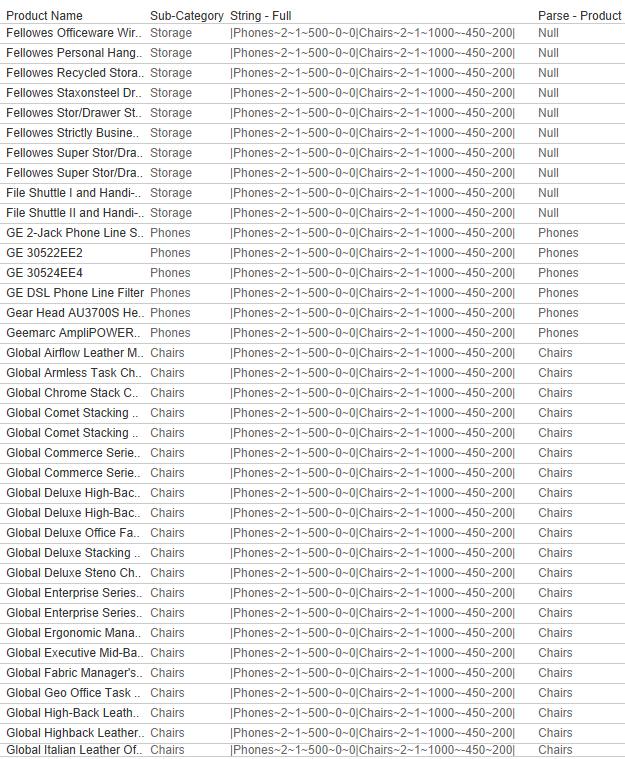
A screenshot showing the results of the Parse - Product calculation

Next, we want to isolate the appropriate section of the [String-Full] field for each Product. I’m going to do this with a Regex calculation, but it could also be done with FIND/MID. Here is my calculation called [Parse – Product String]

This REGEX calculation will look to the [String – Full] field and capture everything starting at, and including, the value that was returned in the [Parse – Product] calculation, up through the first ‘|’. With this calculation in place, we now have all of the options selected by the user, in a single field, in the appropriate rows.
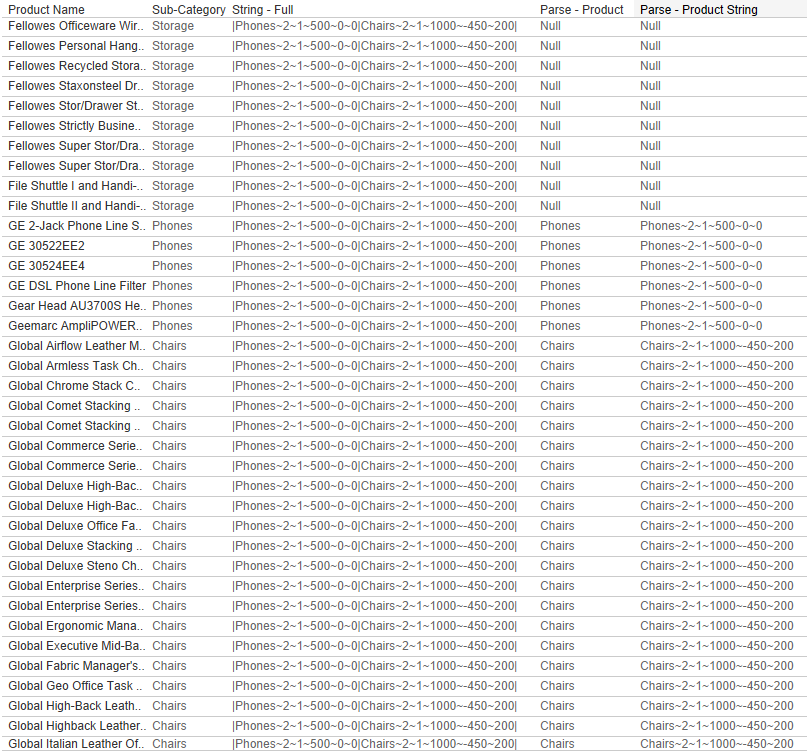
A screenshot showing the results of the Parse - Product String calculation

Now all we need to do is parse this single field into individual fields, which can easily be done with the SPLIT() function. We already have product, so we don’t need to split the first value, which leaves 5 remaining fields. If you look back at how we constructed our string, the order of these fields is 1. Product Level, 2. Price Adjustment Type, 3. Price Adjustment, 4. Unit Adjustment, 5. Cost Adjustment. So we will create a calculated field for each of these.

There are 2 additional calculations you can build here but they are completely optional. They are only used to get an Order of the products in the string. I would recommend building these for two reasons. It will allow you to sort the Products on your dashboard if you are displaying all of the changes, and it will let you separate the Product that is currently being adjusted vs ones that have already been saved. I like to separate these in the dashboard so users can review the impact in a separate table before saving the change.

The first calculation will look at the [String – Full] field and return everything to the left of the [Parse – Product String]. The second calculation will count the number of ‘|’ that appear in that value to calculate the Order.

At this point we have captured every single option entered by the user, for every product (or group of products), and we have all of those values separated out into individual fields for the appropriate rows. Pretty cool right?
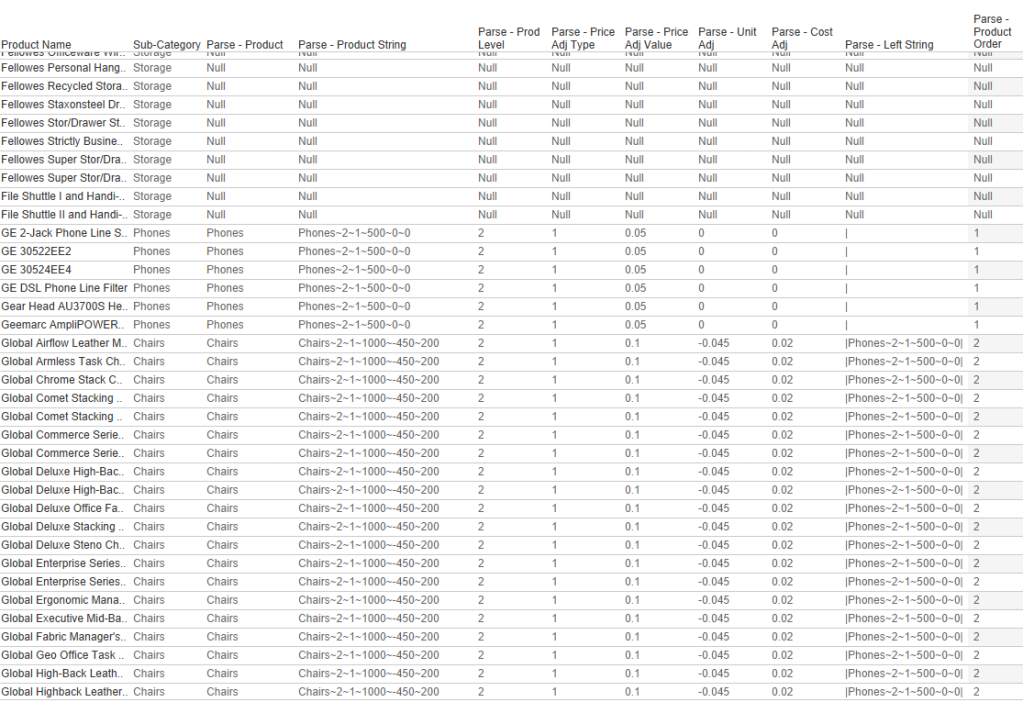
A screenshot showing all Parse fields in a table

Applying the Changes

Our next step, now that we have captured all of the changes and parsed them into usable fields, is to apply those changes so our users can view the impact. This can be done with just a few relatively simple calculation.

Determine Which Rows to Adjust

Our first few calculations are row-level calcs that determine if our changes should be applied to that row. We will build one calc to test if a specific Store should be included, another calc to test if a specific product should be included, and then one last calc that combines them.

First, our [Selected Store Filter] is just a boolean calc that tests to see if a store is in the State Set and in the Store Set. I am including a check on both sets because if a user selects just a state, and doesn’t change anything in the Store set, I want to make sure that it captures just the Stores in the selected State(s).

Our next calc, [Selected Product Filter] is another simple boolean calc that tests to see if a specific product was included in any of the adjustments. For this, we’ll go back to one of our previous calcs. The [Parse – Product] field will only be populated when that product was included in the adjustments. So if it’s not NULL, then it’s included.

Now we’ll just combine those into one more boolean calc, so we don’t have to address them separately in the rest of the calculations. We’ll call this [Row Adjust] and it will be a boolean value telling us whether or not the values in that specific row should be adjusted or not.

Apply the Changes

Now we know which rows we should adjust, and which rows shouldn’t change. The next step is to create calculated fields to adjust the 3 measures that we gave our users the ability to change; Price, Units, and Cost. These are all relatively simple, but the Price one is a little more complicated because we gave the users multiple options for adjusting it. Let’s start with that one.

The [Price – Adj] field will look like this. Line 1 checks to see if the row should be adjusted. If it should NOT be adjusted, then it returns the value of the [Price] field, which represents the current Price. Line 2 checks to see if there was a price change at all (it’s possible that the user just modified the units or cost to see the impact). If they did not change the price, the value of the Price Change Parameters would have stayed at 0. So if that value is 0, once again, we’ll return the current [Price]. Next, if the user had selected to enter an Exact price ([Price Adjustment Type]=2) then we’ll use the value that was entered. And finally, if the user had selected to enter a Proportional Change ([Price Adjustment Type]=1), then multiply the current [Price] by 1+ the % Change.

The [Units – Adj] and [Unit Cost – Adj] calculations are much more straightforward as the user could only enter a % change for these. For both of these calculations, if the row should be adjusted, we’ll multiply the current value * 1 + the % change, and if the row should not be adjusted, we’ll keep the current value.

Measure the Impact

If we go back to the requirements for this dashboard, the users wanted to be able to measure the impact on Revenue, Cost, and Profit. So our next step is to calculate estimates for those values based on the current Price, Units, and Unit Cost, and estimates for those values based on the new Price, Units, and Unit Cost.

There are a lot of ways you can do this, but I am just going to use the Rolling 12 month Units, and the current Price and Cost to calculate our baseline. You could also use different lengths of time, or use forecasts in place of actuals. But this analysis is basically comparing what our Revenue, Profit, and COGS would look like if we sold the exact same units as we did last year, at our current Price and Cost, versus what our Revenue, Profit, and COGS would look like if we applied all of our adjustments.

These are all very simple calculations. Let’s start by calculating the Estimated Revenue, Estimated COGS, and Estimated Profit for our baseline.

Now we’ll repeat the exact same calculations, but with our ‘Adjusted’ measures

And now we can compare our baseline to our estimates from all of the applied changes

And that’s it! Now you can aggregate these measures any way you want to show the impact at different levels (Overall, by Store, by Product Category, etc.)

Optional (but Encouraged) Enhancements

But we aren’t quite done yet. There are a few other ‘Optional’ Enhancements I would recommend incorporating into your dashboard. At the very least, I would strongly encourage you to build in 1 thru 3 from the list below, and at the absolute minimum, add number 1. But they don’t take very long, and they make for a better user experience, so go ahead and add them all.

1. Block Products From Being Selected Again After Adjustment

The way this technique is set up, because the string we are working off of is a combination of ‘Saved’ adjustments, and the ‘Current’ adjustment, it can act a little strange if the Product that is currently selected is already in the Saved String. Basically, this Product will appear twice and the ‘Current’ will override the ‘Saved’. There are 2 different ways this can happen.

  1. After you click the ‘Save’ button, the same Product is still selected. So even though you have Saved that change, it won’t show up in your Saved changes, because it’s appearing twice in the string (once for the Current and once for the Saved). Once you select a different Product, you’ll see that Product show up in the Saved Changes. This can be really confusing for the user.
  2. If you have already adjusted a Product, but then manually select that same Product from the list again.

To combat number 1, we just need to add one additional Action to our ‘Save’ button. Make sure that the [Product Set] is on Detail on your Save button. Also, make sure that it is showing as ‘Product Set’ and not ‘IN/OUT (Product Set)’. If it is showing as ‘IN/OUT…’, just right click on that field and select ‘Show Members in Set’. Then we are going to create a Set Action that clears our Product Set when you click on the Save button. The Set Action should look like this. And don’t worry about the Warning at the bottom, the Action will still function as intended (if you want to get rid of the error, you can put [Product] on Detail, just make sure that you are filtering the Save sheet to what is in the set so your button doesn’t duplicate. But this isn’t necessary as it will still work with the error showing).
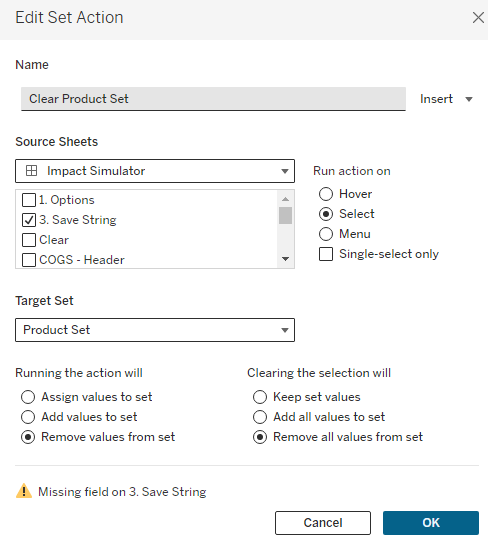
An image showing how the Clear Product Set Action is configured

Once this action is in place, when you click the ‘Save’ button, the selection in the Product Set will go to ‘None’ and your adjustments will show up in the ‘Saved’ changes.

To combat number 2, we just need to add a filter to our ‘Options’ sheet. This is the sheet we built at the beginning of this process to be able to display our Sets on the dashboard. To start, we are going to create a calculated field, similar to our [Parse – Product] calculation, but in this case, we only want to check the [String – Saved], not the [String – Full], which contains the Saved and Current adjustments. This is exactly the same as [Parse – Product], but we’re going to swap out those two fields and call it [Parse – Product – Adj]

Similar to the [Parse – Product] field, this field will return the appropriate value if it exists in the Saved changes, and Null if it’s not in the Saved Changes. So we can just drag this field onto our Filter Shelf, filter on NULL and then add that filter to Context. Then, on our Dashboard, right click on the Product Set and choose the ‘All Values in Context’ option. Now, once a Product has been saved, it cannot be selected again.

2. Displaying Current vs Saved Changes

When I am using this technique in a dashboard, I like to show all of the relevant information for the changes in Tables, so the user has a clear view of everything that has been adjusted and how those adjustments are impacting the overall metrics. I also like to separate the adjustment they are currently working on from the ones that have already been saved. The good news is, if you went ahead and built the 2 additional Parse fields earlier in this process, [Parse – Left String] and [Parse – Product Order], this is really easy to do. If you decided to skip those steps, I would go back to that section now and create those.

Once those calculations are available, you can filter on [Parse – Product Order]=1 to get the ‘Current’ change, and then in a separate sheet, exclude 1 and NULL to get all of the ‘Saved’ changes. I also like to sort my Saved Changes in Ascending Order on the [Parse – Product Order] field, so that the most recent Saved changes always appear the top.

I also set up my tables using multiple Axes, rather than using Measure Names/Values, so I have more control over how I can display the information. My table for Saved Changes would look something like this. This table design also helps with #3 on the list, which we’ll discuss next.
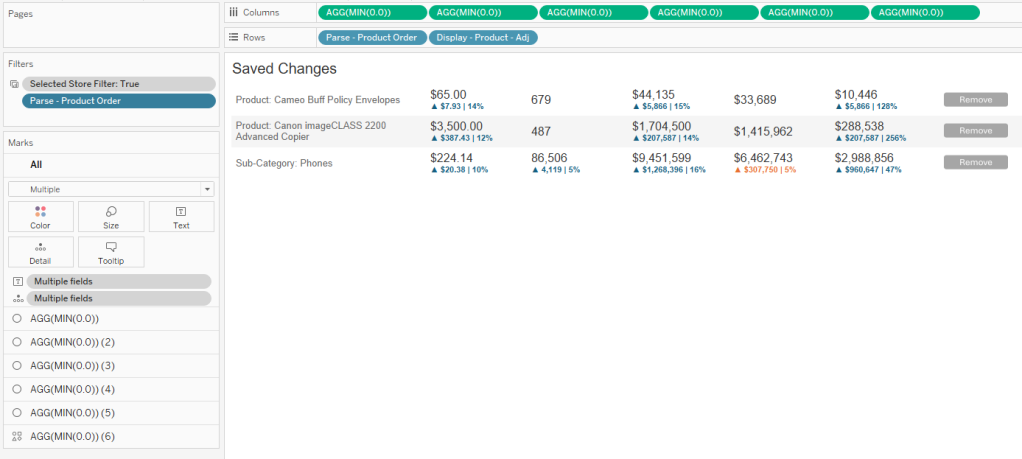
A screenshot showing a sample table format

3. Add option to Remove changes

One important feature that I like to add is the ability to ‘Remove’ a change once it’s saved. In #1 we made it so that users can’t select a Product that has already been adjusted, so in order for them to change an adjustment, they’ll need a mechanism for deleting it from the ‘Saved’ changes. Because I set up my table using multiple axes, I can leverage one of these to add a ‘Remove’ button.

In my example, I am using a custom shape, but you can use whatever you would like here (custom shape, native shape, text, etc.). We’re then going to create one additional calculated field called [Remove – String] and add this to Detail on that last axes.

This calculation will be used to update the [String – Saved] parameter with a modified string that replaces the whole string for the selected product with just a “|”. It will essentially ‘Delete’ that Product from the [String – Saved] parameter. Once this field is on Detail, we just need to create one additional Parameter Action driven from our Saved Changes worksheet.
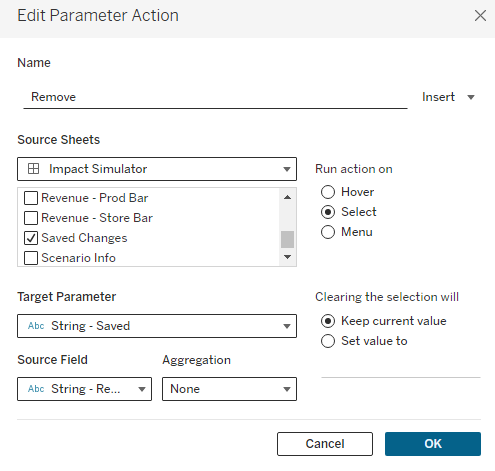
An image showing how the Remove Dashboard Action is configured

After adding this action, users will be able to click on the ‘Remove’ button you’ve added to remove it from their Saved Changes. One thing to keep in mind is that clicking on any of the Row Headers will also remove that row. Because of that, I will typically float a Blank object over the table, covering everything except for the ‘Remove’ column.

4. Reset button

This is a nice feature, but not completely necessary. Since this will most likely be used on Tableau Server or Tableau Cloud, the user could just refresh the browser if they wanted to start over. But to make it a little easier for the user, I put a ‘Clear Selections’ button right on the dashboard. This is just a sheet, with a custom shape for the button, that uses a series of Dashboard Actions to reset all of the Parameters

5. Hiding Save button until changes are made

This is another completely optional feature. I like to hide the ‘Save’ button until the user has actually made some type of change. This just helps to avoid accidentally saving something before the user finishes with their adjustments. For this, I am using Dynamic Zone Visibility, and using a calculated field called [Show Save Button]. This calculation checks all of the different Adjustment parameters to see if a value has been entered or if they are all still set to 0.

Recap

That about covers it. This is a pretty complicated technique, but it can be an extremely powerful tool for your users. As I mentioned a few times throughout this post, this post walked through a specific use case, but this same technique can be applied to countless others. The specifics will change, but the overall process and technique will stay the same. No matter what the situation, these are the steps you will want to follow

  1. Build your Selection Options
    • For the ‘Thing that is being changed’, in this case ‘Product’, make sure that the user can only select one value at a time
      • You can use a Parameter, or a Set (but I recommend Set so you can remove products that have already been adjusted)
        • If you are using a Set, make sure that on the dashboard you choose ‘Single Value Dropdown’ and disable the ‘Show All’ option
    • Create a numeric parameter for each of the measures you want to adjust
  2. Capture the Selections
    • Use a calculated field to capture the ‘Current’ adjustments in a string
      • Make sure that the ‘Thing that is being changed’ appears first in the string. The order after that does not matter
      • Make sure to use unique characters to separate the data in your string
      • Make sure to cast all numeric values as strings. If you need to capture decimals, use the multiply and round approach from earlier in this post
    • Use a parameter to capture the ‘Saved’ adjustments
      • Build a ‘Save’ button that combines the ‘Current’ adjustments string with the ‘Saved’ adjustments string and pass that to your Saved String Parameter
        • Remember #1 from the Optional Enhancements section – Use additional actions to clear the Set/Parameters used for selections
  3. Parse the Data
    • Use the calculated fields in the ‘Parsing the String’ section to parse the selection string into usable fields
      • First, parse the ‘Thing that is being changed’
      • Second, capture the section of the full string for that ‘Thing that is being changed’, along with all of the other selections
      • Third, build one calculated field for each user option to parse that selection into it’s own field
      • Fourth, use the two calculated fields provided (Parse – Left String and Parse – Product Order) to calculate the order in which the ‘Things’ have been adjusted
  4. Apply the Changes
    • Determine which rows need to be adjusted
    • Use calculated fields to return the current value for rows that are not being adjusted, and the adjusted value for rows that are being adjusted
  5. Measure the Impact
    • Create calculated fields to create ‘baseline’ and ‘adjusted’ values
    • Create additional calculated fields to compare the ‘baseline’ to ‘adjusted’ values
  6. Visualize the Impact
    • Add visuals to your dashboard
      • I would recommend showing a table view of the ‘Saved’ and the ‘Current’ changes. I like to do this in separate tables
      • Build additional views to visualize the impact of the adjustments

I hope you enjoyed this post. If you use this technique in your work, please let me know. I am very interested to see some of the different applications of this technique. And, as always, if you have any questions about this post, or run into issues trying to implement this technique, please feel free to reach out to me on Twitter or LinkedIn. Thanks for reading!

Categories
How-To's It Depends Tableau Techniques

It Depends: KPI Swapping with BAN Selectors

Welcome to another installment of “It Depends”. In this post we’re going to look at two different ways to use BAN’s to swap KPI’s in your dashboard. If you’re not familiar with the term “BANs”, we’re talking about the large summarized numbers, or Big Ass Numbers, that are common in business dashboards.

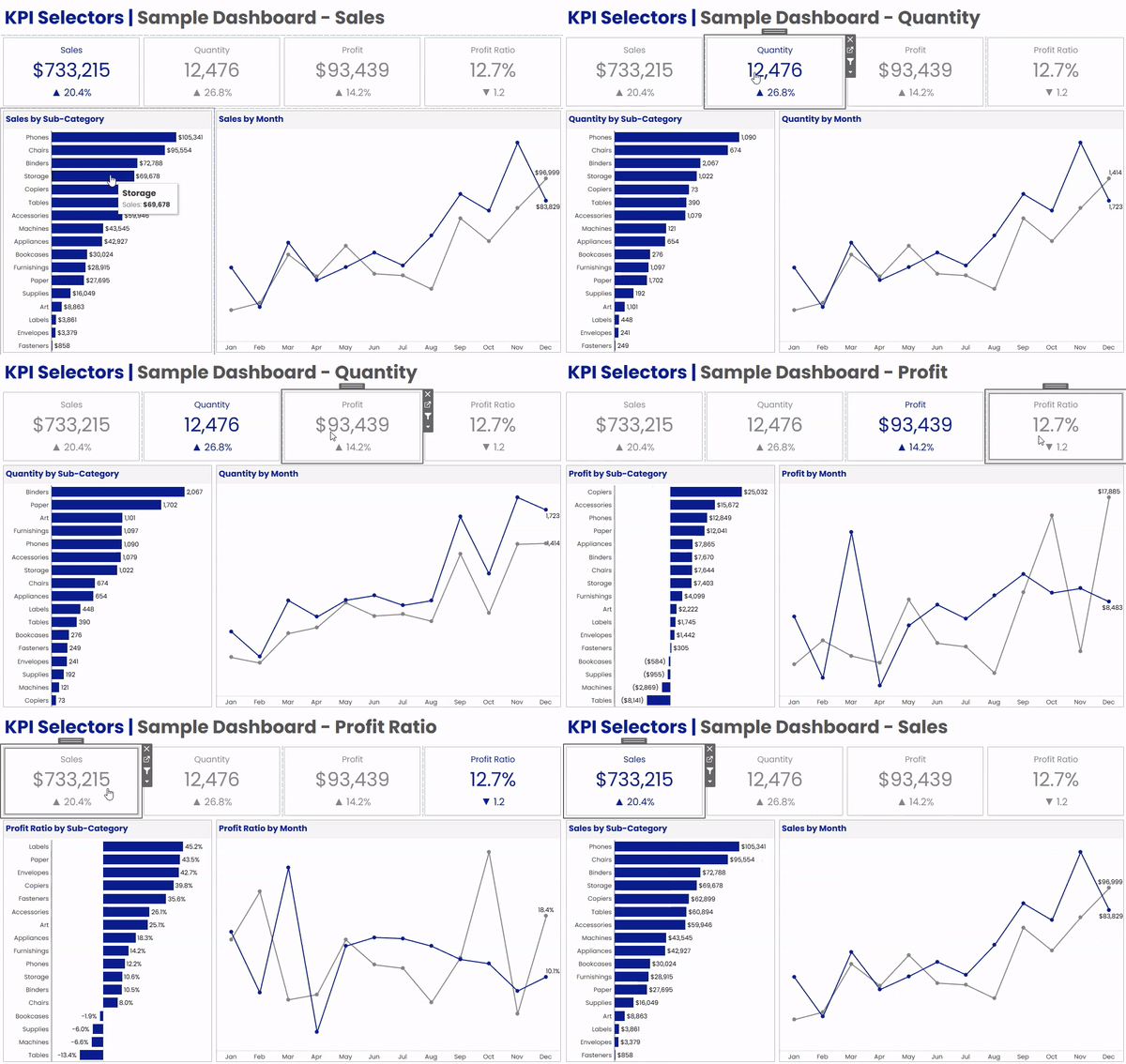
When I build a KPI dashboard, I like to give my users the ability to dig into each and every one of their key metrics, and the techniques we cover in this post are a great way to provide that kind of flexibility. Here is a really simple example of what we’re talking about.

A gif demonstrating how the measures change when each BAN is selected

In the dashboard above, we have 4 BAN’s across the top; Sales, Quantity, Profit, and Profit Ratio. Below that, we have a bar chart by Sub-Category, and a Line Chart showing the current vs previous year. When a user clicks on any of the BANs in the upper section, the bar chart and the line chart will both update to display that metric. A couple of other things that change along with the metric are the dashboard title, the chart titles, and the formatting on all of the labels.

We’re going to cover two different methods for building this type of flexible KPI dashboard. A lot of what we cover is going to be the same, regardless of which method you choose, but there are some pretty big differences in how both the BANs and the Dashboard Actions are constructed in each method.

For this exercise we’re going to use Superstore Data, so you can connect to that source directly in Tableau Desktop. If you would like to follow along in the Sample Workbook, you can download that here.

The Two Methods

Measure Names/Values – In the first method we’re going to use Measure Names and Measure Values to build our BANs. When a user clicks on one of the Measure Values, we will have a dashboard action that passes the Measure Name to a parameter.

Individual BANs – In the second method, we’re going to use separate worksheets for each of one of our BANs. When a user clicks on one of the BANs, we’ll pass a static value that identifies that metric (similar to the Measure Name) to a parameter. With this method, we’ll need a separate dashboard action for each of our BANs.

Method Comparison

So at this point you may be wondering, why would you waste time building out separate worksheets and separate dashboard actions when it can all be done with a single sheet and a single action. Fair question. As you’re probably aware, Measure Names and Measure Values cannot be used in calculated fields, so with the Measure Names/Values method, you are going to be pretty limited in what you can do with your BANs. Let’s take another look at the BANs in the example dashboard from earlier.

An image of BANs with growth indicators and color applied

Numbers alone aren’t always very helpful. It’s important to have context, something to compare those numbers to. Anytime I put a BAN on a dashboard, I like to add some kind of indicator, like percent to a goal, or growth versus previous periods. Another thing I like to do is to use color to make it very obvious which metric is selected and being displayed in the rest of the dashboard. Neither of these are possible with the first method as they both require calculated fields that reference either the selected measure or the value of that measure.

Unlike some of our other “It Depends” posts, the decision here is pretty easy.

A decision tree for which method to use. If you want to add anything other than the measure to your BAN, or want to apply color to show the selection, use Method 2, otherwise you can use Method 1

Method 2 does take a little more time to set up, but in my opinion, it’s usually the way to go. Beyond the two decision points above, the second method also provides a lot more flexibility when it comes to formatting. But if you’re looking for something quick and these other considerations aren’t all that important to you or your users, by all means, go with the first one.

Methods in Practice

This section is going to focus only on building the BANs and setting up the dashboard actions. We’ll walk through how to do that with both of the methods first, and then we’ll move onto setting up the rest of the dashboard, since those steps will be the same for both methods.

Before we get started, let’s build out just a couple of quick calculations that we’ll be using in one or both methods.

First, let’s calculate the most recent date in our data source. Often, in real world scenarios, you’ll be able to use TODAY() instead of the most recent date, but since this Superstore Data only goes through the end of 2021, we’re going to calculate the latest date.

Max Date: {FIXED : MAX([Order Date])}

Now, let’s calculate the Relative Year for each date in our data source. So everything in the most recent year will have a value of 0, everything in the previous year will have a value of -1, and so on.

Relative Year: DATEDIFF(“year”,[Max Date],[Order Date])

And lastly, we’re working with full years of data here, but that’s usually not the case. In my BANs, I want to be able to show a Growth Indicator, but in a real world scenario, that growth should be based on the value of that metric at the same point in time during the previous year. So let’s build a Year to Date Filter.

Year to Date Filter: DATEDIFF(“day”,DATETRUNC(“year”,[Order Date]),[Order Date])<=DATEDIFF(“day”,DATETRUNC(“year”,[Max Date]),[Max Date])

And that calculation is basically just calculating the day of the year for each order (by comparing the order date to the start of that year), and then comparing it to the day of the year for the most recent order. Again, in a real world scenario, you would probably use TODAY() instead of the [Max Date] calculation.

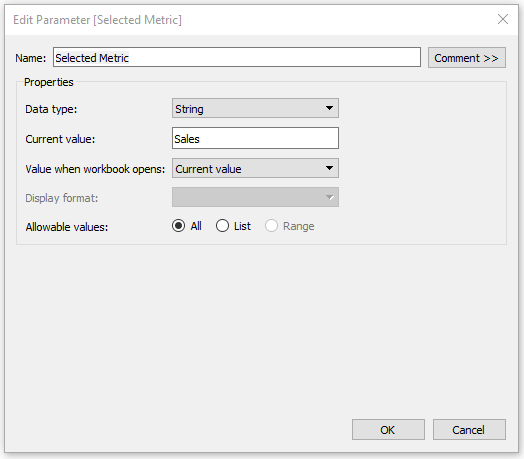
And finally, we just need one parameter that will store our selection when we click on any of the BANs. For this, just create a parameter, call it “Selected Metric”, set the Data Type to “String”, and set the Current Value to “Sales”.

An image showing what the Parameter settings should look like

Ok, that’s enough for now, let’s start building.

Measure Names/Values

Follow the steps below to build your BANs using the Measure Names/Values method. I’m going to provide the steps on how the ones in the sample dashboard were built, but feel free to format however you would like.

Building

  • Right click on [Relative Year] and select “Convert to Dimension”
  • Drag [Relative Year] to filter shelf and filter on 0 (for current year)
  • Drag Measure Names to Columns
  • Drag Measure Values to Text
  • Drag Measure Names to Filter and select Sales, Quantity, Profit, and Profit Ratio
  • Right click on Measure Names on the Column Shelf and de-select “Show Header”
  • Drag Measure Names to “Text” on the Marks Card

Formatting

  • Change Fit to “Entire View”
  • Click on “Text” on the Marks Card and change the Horizontal Alignment to Center
  • Click on “Text” on the Marks Card, click on the ellipses next to “Text” and format
    • Position Measure Names above Measure Values and set font size to 12
    • Change font size of Measure Values to 28
    • Set desired color
  • On the Measure Values Shelf, below the Marks Card, right click on each Measure and format appropriately (Currency, Percentage, etc.)
  • Go to Format > Borders and add Column Dividers (increase Level to get dividers between BANs)
  • Click on Tooltip on the Marks Card and de-select all checkboxes to “turn off”

When you’re done building and formatting your BANs, your worksheet should look something like this

An image showing what the BANs worksheet should look like with Method 1

Now we just need to add this to our dashboard, and then add a a Parameter Action that will pass the Measure Name from our BANs worksheet to our [Selected Metric] parameter.

  • Go to Dashboard > Actions and click “Add Action”
  • Select “Change Parameter” when prompted
  • Give your Parameter Action a descriptive Name
  • Under Source Sheets, select the BANs worksheet that you created in the previous steps
  • Under Target Parameter, select the “Selected Metric” parameter we created earlier
  • Under Source Field, select “Measure Names”
  • Under Aggregation, select “None”
  • Under Run Action on, choose “Select”
  • Under Clearing the Selection Will, select “Keep Current Value”

The Parameter Action should look something like this.

An image showing what the Parameter Action settings should look like

One last formatting recommendation that I would make is to use one of the methods described in this post, to remove the blue box highlight when you click on one of the BANs. Use either the Filter Technique, or the Transparent Technique.

So that’s it for this method…for now. We’re going to switch over to setting up the BANs and dashboard actions for Method 2 first, and then we’ll regroup and walk through the rest of the dashboard setup. If you plan on using Method 1, please skip ahead to the “Setting up the Dashboard” section below.

Individual BANs

Follow the steps below to build your BANs using the Individual BANs method. I’m going to walk through how to build one of the BANs, and then you’ll need to repeat that process for each one in your dashboard. A couple of other things we’ll do in these BANs include adding growth indicators vs the previous year, and adding color to show when that BAN’s measure is selected/not selected. And as I mentioned in the previous example, I’m going to cover how I formatted these BANs in the sample workbook, but feel free to format however you see fit.

Let’s start by building our “Sales” BAN.

Building

  • Right click on [Relative Year] and select “Convert to Dimension”
  • Drag [Relative Year] to filter shelf and filter on 0 and -1 (for current and prior year)
  • Drag [Year to Date Filter] to filter shelf and filter on True
  • Drag Relative Year to Columns and make sure that 0 is to the right of -1
  • Drag your Measure (Sales) to Text on the Marks Card
  • Add Growth Indicator
    • Drag your Measure (Sales) to Detail
    • Right click and select “Add Table Calculation”
    • Under Calculation Type, select “Percent Difference From”
    • Next to “Relative To”, make sure that “Previous” is selected
    • Drag the Measure with the Table Calculation from Detail onto Text on the Marks Card
  • Right click on the “-1” in the Header and select “Hide”
  • Right click on Relative Year on the Column Shelf and de-select “Show Header”

Formatting

  • Change Fit to “Entire View”
  • Click on “Text” on the Marks Card and change the Horizontal Alignment to Center
  • Click on “Text” on the Marks Card, click on the ellipses next to “Text” and format
    • Insert a line above your Measure and add a label for it (ex. “Sales”). Set font size to 12.
    • Change font size of the measure (ex. SUM(Sales)) to 28
    • Change font size of growth indicator (ex. % Difference in SUM(Sales)) to 14
  • Right click on your measure on the Marks Card and format appropriately (for Sales, set to Currency)
  • Right click on your growth measure on the Marks Card, select Format, select Custom, and then paste in the string below
    • ▲ 0.0%;▼ 0.0%; 0%
    • When the growth is positive, this will display an upward facing triangle, along with a percentage set to 1 decimal point
    • When the growth is negative, this will display a downward facing triangle, along with a percentage set to 1 decimal point
    • When there is 0 growth, this will display 0% with no indicator
  • Click on Tooltip on the Marks Card and de-select all checkboxes to “turn off”

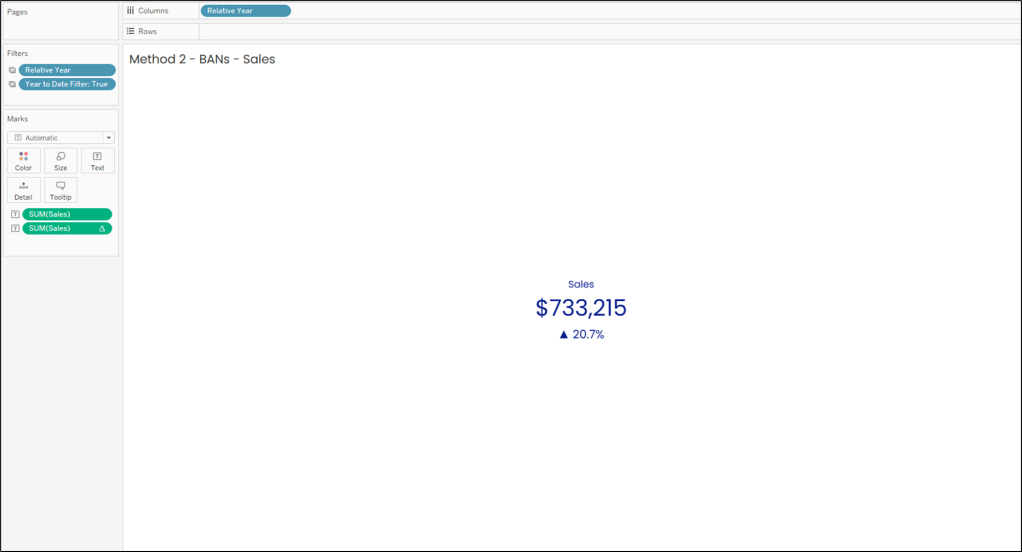
When you’re done building and formatting your Sales BAN, it should look something like this.

An image showing what the Sales BAN worksheet should look like

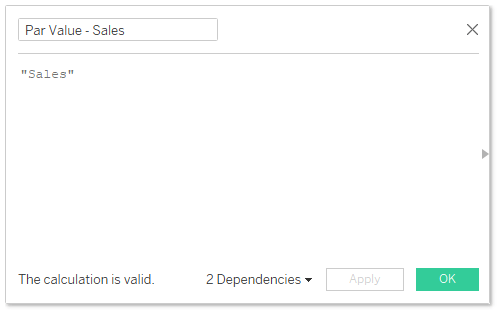
There are a couple more additional steps before we move on to the dashboard actions. First, we need a field that we can pass from this BAN to our parameter. For this, just create a calculated field called “Par Value – Sales”, and in the calculation, just type the word “Sales” (with quotes).

An example of the Par Value calculation

Par Value Sales: “Sales”

And then drag the [Par Value – Sales] field to Detail on your Sales BAN worksheet.

Just a quick note here. If I was building this for a client, I would probably use a numeric parameter, and pass a number from this BAN instead of a text value. It’s a little cleaner and better for performance, but for simplicity and continuity, we’ll use the same parameter we used in Method 1. Ok, back to it.

Now, we need one more calculated field to test if this measure is the currently selected one. This is just a simple boolean calc, and we’ll call it “Metric Selected – Sales”.

Metric Selected – Sales: [Selected Metric]=”Sales”

Now drag that field to Color on your Sales BAN worksheet. Set the [Selected Metric] Parameter to “Sales” (so the result of the calculation is True) and assign a Color. Now, set the [Selected Metric] Parameter to anything else (so the result of the calculation is False) and assign a color.

Now our Sales BAN is built, we just need to add it to our dashboard and then add a Parameter Action that will pass our [Par Value – Sales] field to our [Selected Metric] parameter when a user clicks on the Sales Ban.

  • Go to Dashboard > Actions and click “Add Action”
  • Select “Change Parameter” when prompted
  • Give your Parameter Action a descriptive Name
  • Under Source Sheets, select the Sales BAN worksheet that you created in the previous steps
  • Under Target Parameter, select the “Selected Metric” parameter we created earlier
  • Under Source Field, select [Par Value – Sales]
  • Under Aggregation, select “None”
  • Under Run Action on, choose “Select”
  • Under Clearing the Selection Will, select “Keep Current Value”

The Parameter Action should look something like this.

An image showing what the parameter action settings should look like

And just like with Method 1, I would recommend using one of the methods described in this post, to remove the blue box highlight when you click on the Sales BAN. You could use either the Transparent or the Filter Technique, but with this method, I would really recommend using the Filter Technique.

Now, repeat every step from the “Individual BANs” header above to this step, for each of your BANs. I warned you it would take a little longer to set up, but it’s totally worth it. And once you’re comfortable with this technique, it moves very quickly. To save some time, you can probably duplicate your Sales BAN worksheet and swap out some of the metrics and calculations, but be careful you don’t miss anything.

Setting up the Dashboard

Now our BANs are built and our dashboard actions are in place. Either method you chose has brought you here. We just have a few steps left to finish building our flexible KPI dashboard. Here’s what we’re going to do next.

  • Adjust our other worksheets to use the selected metric
  • Dynamically format the measures in our labels and tooltips
  • Update our Headers and Titles to display the selected metric

Show Selected Metric in Worksheets

The first thing we need to do here is to create a calculated field that will return the correct measure based on what is in the parameter. So users will click on a BAN, let’s say “Sales”. The word “Sales” will then get passed to our [Selected Metric] parameter. Then our calculation will test that parameter, and when that parameter’s value is “Sales”, we want it to return the value of the [Sales] Measure. Same thing for Quantity, Profit, etc. So let’s create a CASE statement with a test for each of our BAN measures, and call it “Metric Calc”.

Metric Calc

CASE [Selected Metric]
WHEN “Sales” then SUM([Sales])
WHEN “Quantity” then SUM([Quantity])
WHEN “Profit” then SUM([Profit])
WHEN “Profit Ratio” then [Profit Ratio]
END

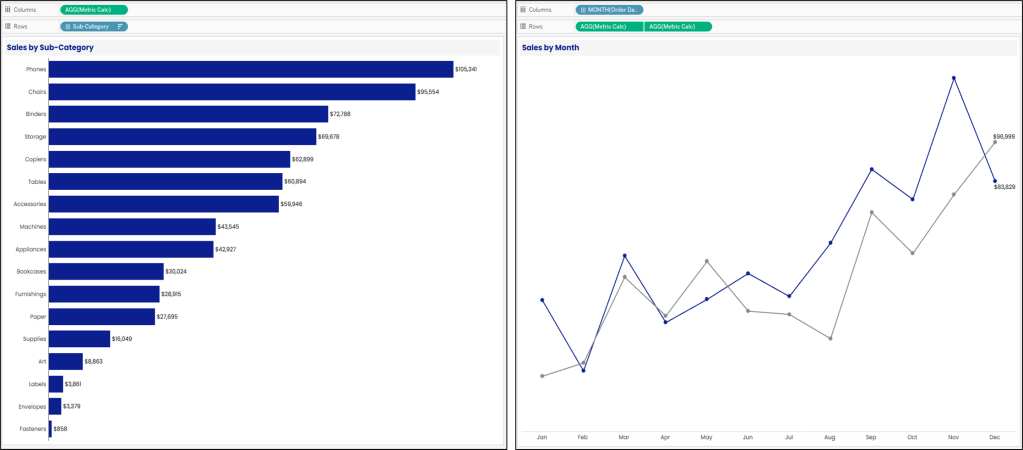
Now, we just need to use this measure in all of our worksheets, instead of a static measure. In our Bar Chart, we’re going to drag this measure to Columns. In our Line Chart, we’re going to drag this measure to Rows.

An image showing the Metric Calc field being used in the dynamic charts in the dashboard

Now, whenever you click on a BAN in the dashboard, these charts will reflect the measure that you clicked on. Pretty cool right? But there is a glaring problem that needs to be addressed.

Dynamic Formatting on Labels/Tooltips

In our example, we have 4 possible measures that could be viewed in the bar chart and line chart; Sales, Quantity, Profit, and Profit Ratio. So 4 possible measures, with 3 different number formats.

  • Sales = Currency
  • Quantity = Whole Number
  • Profit = Currency
  • Profit Ratio = Percentage

At the time of writing this post, Tableau only allows you to assign one number format per measure. But luckily, as with all things Tableau, there is a pretty easy way to do what we want. We’re going to create one calculated field for each potential number format; Currency, Whole Number, and Percentage.

Metric Label – Currency: IF [Selected Metric]=”Sales” or [Selected Metric]=”Profit” then [Metric Calc] END

Metric Label – Whole: IF [Selected Metric]=”Quantity” then [Metric Calc] END

Metric Label – Percentage: IF [Selected Metric]=”Profit Ratio” then [Metric Calc] END

Here’s how these calculations are going to work together. When a user selects;

  • Sales
    • [Metric Label – Currency] = [Metric Calc]
    • [Metric Label – Whole] = Null
    • [Metric Label – Percentage] = Null
  • Quantity
    • [Metric Label – Currency] = Null
    • [Metric Label – Whole] = [Metric Calc]
    • [Metric Label – Percentage] = Null
  • Profit
    • [Metric Label – Currency] = [Metric Calc]
    • [Metric Label – Whole] = Null
    • [Metric Label – Percentage] = Null
  • Profit Ratio
    • [Metric Label – Currency] = Null
    • [Metric Label – Whole] = Null
    • [Metric Label – Percentage] = [Metric Calc]

No matter what BAN is selected, ONE of these calculations will return the appropriate value and TWO of these calculations will be Null. In Tableau, Null values do not occupy any space in labels and tooltips. So all we need to do is line up these three calculations together. The two Null values will collapse, leaving just the populated value. Here’s how you do that.

  • Go to the Metric by Sub-Category sheet (or one of the dynamic charts in your workbook)
  • If [Metric Calc] is on Label, remove it
  • Format your measures
    • Right click on [Metric Label – Currency] in the Data Pane, select “Default Properties” and then “Number Format”
    • Set the appropriate format
    • Repeat for [Metric Label – Whole] and [Metric Label – Percentage]
  • Drag all 3 [Metric Label] fields to “Label” on the Marks Card
  • Click on “Label” on the Marks Card and click on the ellipses next to “Text”
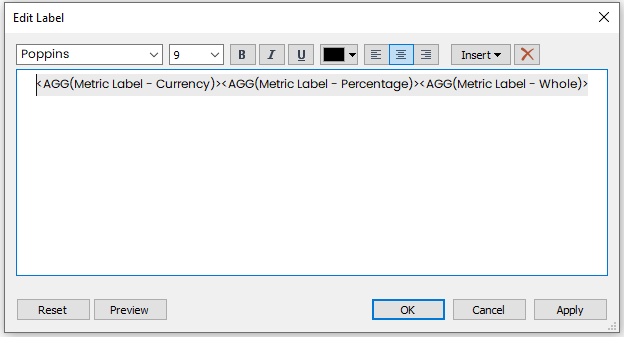
  • Align all of the [Metric Label] fields on the first row in the Edit Label box, with no spaces between fields (see image below)

Your Label should look like this.

An image showing the correct layout, with all of the dynamic labels next to each other

If all of your calculations and default formatting are correct, your Chart labels should now be dynamic. When you click on Sales or Profit, your labels should show as currency. When you click on Quantity, your labels should show as whole numbers. And when you click on Profit Ratio, your labels should show as Percentages. You can repeat this same process for all of your Labels and Tooltips.

Displaying Parameter in Titles

Saving the easiest for last! One last thing you’ll want to do is to update your chart titles so that they describe what is in the view. The view is going to be changing, so the titles need to change as well. Luckily this is incredibly easy.

  • Double click on any chart title, or text box being used as a title
  • Place your cursor where you would like the [Selected Metric] value to appear
  • In the top right corner, select “Insert”
  • Choose the [Selected Metric] parameter

It should look like this. Just repeat for all of your other titles (can work in Tooltips as well).

An image demonstrating how to insert the parameter into a chart title

Finally, I think we’re done! Those are two different methods for building really flexible KPI dashboards. This is a model that I use all the time, and users always love it! It’s incredibly powerful and just a really great way to let your users explore their data without having to build different dashboards for each of your key indicators.

As always, thank you so much for reading, and see you next time!

Categories
How-To's It Depends Tableau Techniques

It Depends: Techniques for Filtering on Multiple Selections with Dashboard Actions in Tableau

Welcome to installment #3 of the “It Depends” blog series. If you’re not familiar with the series, each installment will cover a question where there is no clear definitive answer. We’ll talk through all of the different scenarios and approaches and give our recommendations on what approach to use and when. The question we are tackling this week is “How can dashboard actions be used to filter on multiple selections in a sheet?”. Pretty easy right. Just use a filter action…or a set action…or set controls…or a parameter action. There are clearly a lot of different ways to accomplish this, but which one should you use? And I think you know the answer…It depends!

But before we start…why does this even matter? Why not just throw a quick filter on the dashboard and call it a day? For me, it’s about user experience. When a user sees a mark on a dashboard and they want to dig into it, would they rather a) mouse over to a container filled with filters, find the right filter, click on a drop down, search for the value they want to filter, click that value, and then hit apply, or b) just click on the mark? Don’t get me wrong, quick filters are important, and often times essential, but they can also be a bit clunky, and can hinder performance. So whenever possible, I opt for dashboard actions.

Using dashboard actions to filter from a single mark is pretty easy, but the process gets a little more complicated when you want to be able to select multiple marks. And as developers, we have a choice on whether or not we want to push that burden onto our users. We have to decide what’s more important, ease of use for our users, or ease of setup for ourselves. We’ll also need to take performance into consideration. Those will be the two biggest decision points for which of these 4 methods to implement. And those methods are, as I mentioned above; Filter Actions, Set Actions, Set Controls, and Parameter Actions. There are no restrictions on these four approaches. Any one of them could be used in any scenario, but it’s up to you to weigh the importance of those two decision points and to determine which method gives you the right balance for your specific situation.

The Four Methods

Filter Action – This is the easiest of the four methods to implement and provides users with a better user experience than quick filters, both in terms of interacting with the dashboard and performance. But there are some downsides. First off, in order to select multiple marks, users would either need to hold down the CTRL key while making their selections, or those marks would need to be adjacent so that users could click and drag to select multiple marks together. Not ideal. Also, with Filter Actions, the selections cannot be used in other elements of your dashboard (calculated fields, text boxes, etc), like they can with other methods. And finally, and this one might be a bit personal, you can’t leverage any of the highlighting tips that I discussed in Installment 1 of this series, Techniques for Disabling the Default Highlighting in Tableau. Technically, you could use the “Highlight Technique” but because you can’t use the selected values in a calculated field, there would be no clear way to identify which mark(s) have been selected. Full disclosure, I never use this technique, but I’m going to include it because technically it will accomplish what we’re trying to do.

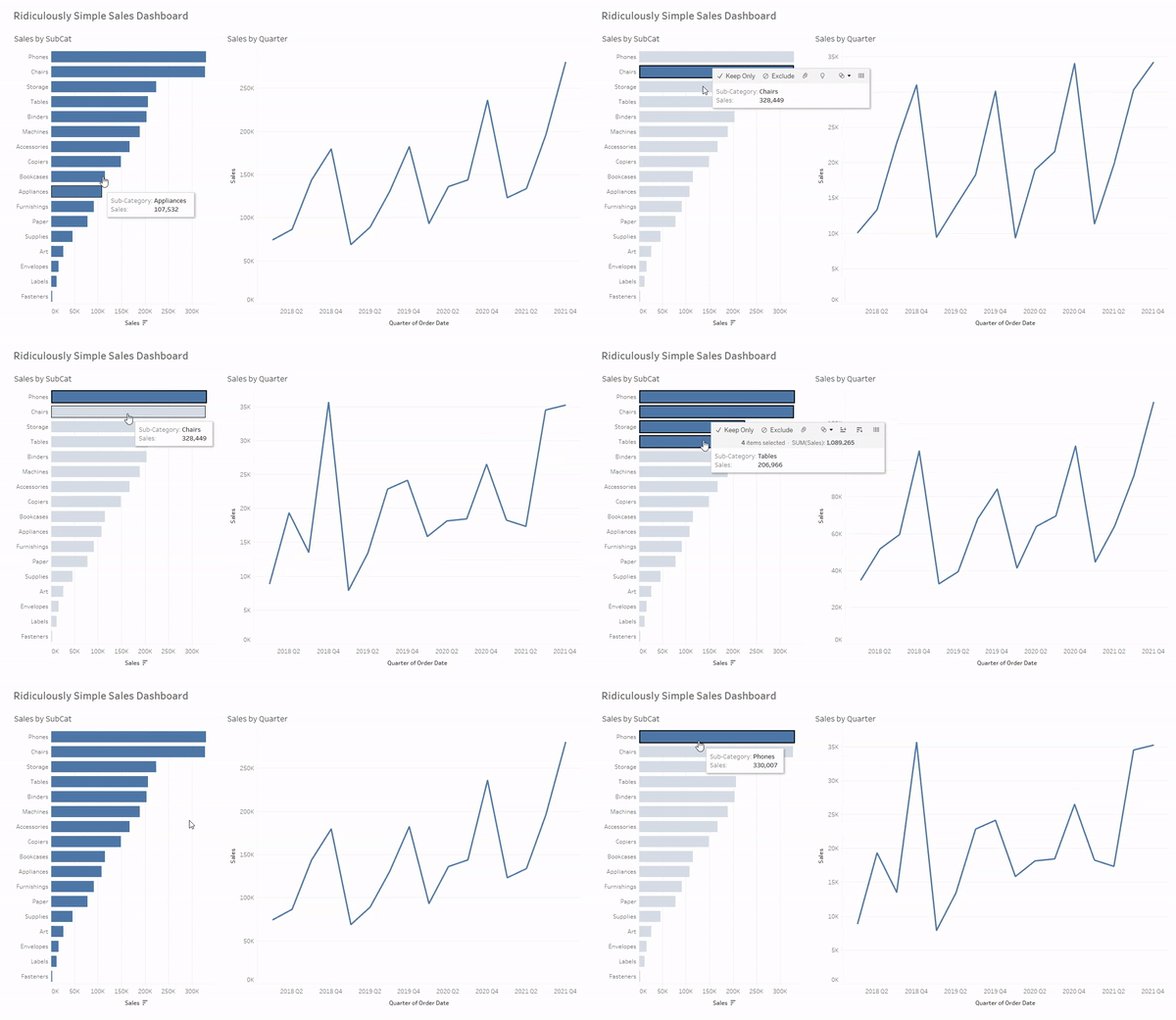
Set Action – This method provides a somewhat similar user experience to Filter Actions. Better performance than quick filters, but users still need to hold CTRL, or click and drag to select multiple marks. The main benefit of this approach over Filter Actions is it’s flexibility. You can use it to filter some views, and in other views you can compare the selected values to the rest of the population. This type of analysis isn’t possible with Filter Actions. With Filter Actions, your only option is to filter out all of the data that is not selected. With Set Actions, you can segment your data into selected and not selected. You can also use those segments in calculated fields, which is another huge benefit over Filter Actions.

Set Controls – This method provides all of the same benefits of Set Actions, but with one major improvement. Users do not need to hold CTRL or click and drag. They can click on individual marks and add them one by one to their set. This method is a little more difficult to set up than the previous two, but in my opinion, it is 100% worth it. It’s possible that it may be marginally worse for performance, but I have never had performance issues using this method. The only things that I don’t like about this approach are that you can’t easily toggle marks in and out of the set (you can do this with a second set action in the ‘menu’, but it’s a bit clunky), and you can’t leverage the Filter Technique for disabling the default highlighting (we’ll talk more about this later).

Parameter Action – In my opinion this approach provides the best user experience. Users can select marks one by one to add to their “filter”, and can also, depending on how you set it up, toggle marks in and out of that filter. The main downside here is performance. This technique relies on some somewhat complicated string calculations that can really hurt performance when you’re dealing with large or complex data sets. It’s also the most difficult to implement. But when performance isn’t a concern, I love this approach.

Method Comparison

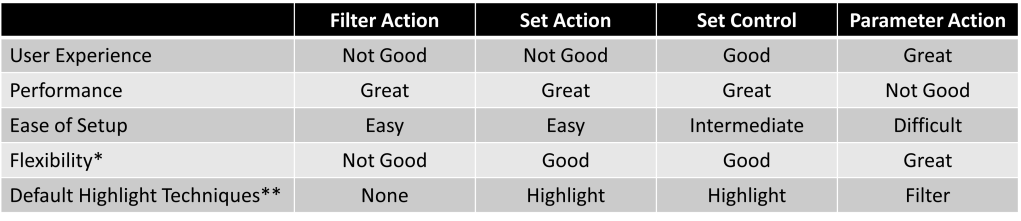
So which method should you use? Let’s take a look at those two decision points that I mentioned earlier, User Experience and Performance.

If neither of these decision points are important then you can ignore this entire post and just use a quick filter. But that’s usually not the case. If Performance is important, but you’re less concerned with User Experience, you can use either a Set Action or a Filter Action (but I would recommend Set Actions over Filter Actions). If User Experience is important and Performance is not a concern, you can use a Parameter Action. And if both User Experience and Performance are important, then Set Controls are the way to go. But as I mentioned earlier, you are not limited to any of these methods in any scenario, and there could be other elements that influence your decision. So let’s do a closer comparison of these methods.

*Flexibility refers to how the selected values can be used in other elements of the dashboard
**Default Highlight Techniques refer to which technique (from Installment 1) can be used with each method

So now we have a pretty good idea which method we should use in any given scenario. Now let’s look at how to implement each of these.

Methods in Practice

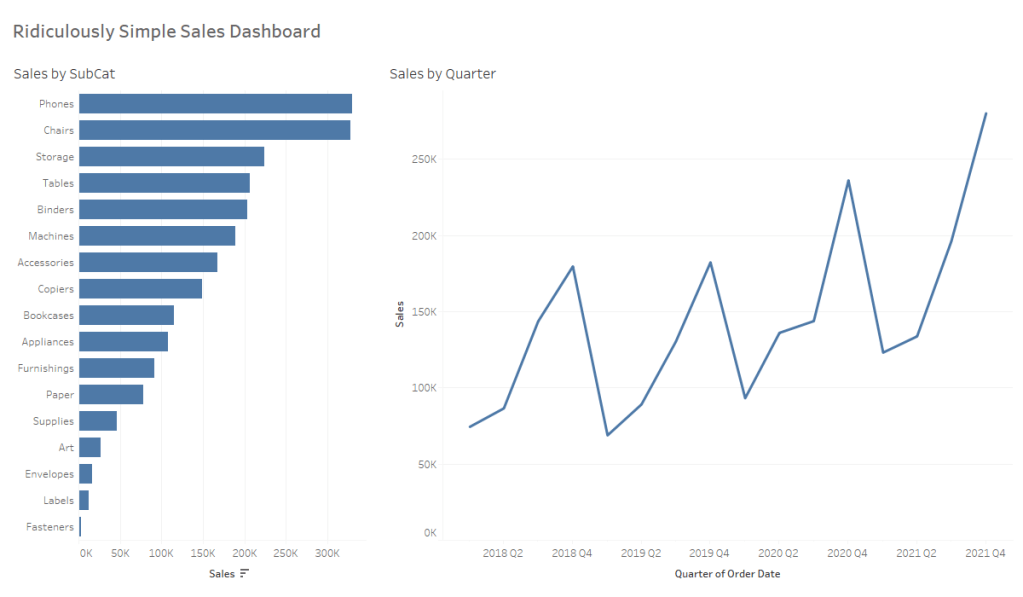
For each of these methods we are going to use this ridiculously simple Sales dashboard. We’re going to use the bar chart on the left (Sales by Subcat) to filter the line chart on the right (Sales by Quarter). If you’d like to follow along, you can download the sample workbook here.

Filter Action

As I mentioned earlier, this is the easiest method to set up, but will require your users to either hold CTRL or click and drag to select multiple marks.

  • Go to Dashboard > Actions and click “Add Action”
  • Select “Filter” from the list of options
  • Give your Action a descriptive Name (ex. SubCat Filter)
  • Under “Source Sheets” select the worksheet that will drive the action. In this example it is our bar chart “Sales by SubCat”.
  • Under “Target Sheets” select the worksheet that will be affected by the action. In this example it is our line chart “Sales by Quarter”
  • Under “Run action on” choose “Select”
  • Under “Clearing the selection will” choose “Show All Values”
  • Click “OK”

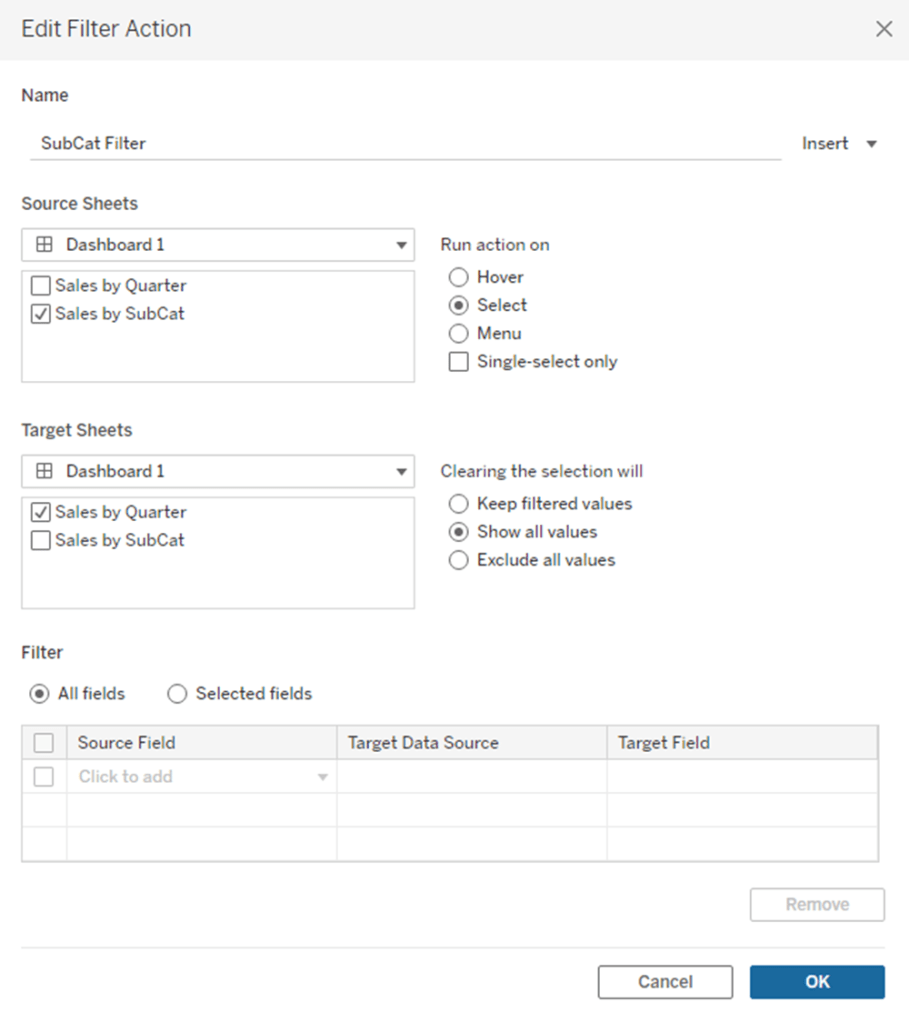
When you’re finished, your “Add Filter Action” box should look like this

And now when we click on a mark, hold CTRL and click multiple marks, or click and drag to select multiple marks our line chart will be filtered to just the selected value(s). And when we click in the white space on that sheet, or the selected value (when only one mark is selected) the filter will clear and the line chart will revert to show all values

Set Action

Filtering with Set Actions is slightly more involved but still pretty straightforward. For this method we need to create our set, we need to add that set to the Filter Shelf on our line chart, and then we need to add the dashboard action to update that set.

  • Go to the sheet that will be affected by the action. In this case it is our line chart (Sales by Quarter).
  • Create a set for the field that will be used for the filter. In this case it is our [Sub-Category] field.
    • Right click on [Sub-Category]
    • Click on “Create”
    • Click on “Set”
    • Click the “All” option to select all values
    • Click “OK”
  • Add the filter to the sheet that will be affected by the action (Sales by Quarter).
    • Drag the [Sub-Category Set] to the filter shelf on the “Sales by Quarter” worksheet
    • It should default to “Show Members in Set”, but just in case, click on the drop-down on the [Sub-Category Set] pill on the filter shelf and make sure that is the option selected
  • Add the dashboard action to update the [Sub-Category Set]
    • Navigate back to the dashboard
    • Go to Dashboard > Actions and click “Add Action”
    • Select “Change Set Values” from the list of options
    • Give your Action a descriptive Name (ex. SubCat Set Action Filter)
    • Under “Source Sheets” select the worksheet that will drive the action. In this example it is our bar chart “Sales by SubCat”.
    • Under “Target Set” select the set that was used as the filter in the previous steps. In this case it is our [Sub-Category Set]
    • Under “Run action on” choose “Select”
    • Under “Running the action will” choose “Assign values to set”
    • Under “Clearing the selection will” choose “Add all values to set”
    • Click “OK”

When you’re finished your “Add Set Action” box should look like this.

The way this Set Action configuration works is that each time you make a new selection, the contents of the set are being completely overwritten with the newly selected values. That’s what the “Assign values to set” option does. And when you clear the selection, by clicking on white space in the sheet, or the last selected value, the contents of the set are replaced again with all of the values. That’s what the “Add all values to set” option does.

I would recommend one additional step if you’re using this method to override the default highlighting. When using Set Actions you are somewhat limited on what techniques you can use for this, but the “Highlight Technique” works great. You can read about how to use that technique here. Once you’ve added the Highlight Action, just put the [Sub-Category Set] field on color on your “Sales by Subcat” sheet and select the colors you want to display for marks that are selected (in the set) and marks that are not selected (out of the set). When you’re done, your dashboard should look and function like this. Keep in mind that similar to Filter Actions, users will need to hold CTRL and click, or click and drag to select multiple marks.

Set Controls

Setting up our filter with Set Controls is going to be very similar to Set Actions, but with one major difference. The way Set Controls work is that they allow you to select marks one by one and either add them to your set or remove them from your set. This is a great feature, but it makes filtering with them a little tricky.

If we were to start with all of our values in the set, we couldn’t just click on a value in our bar chart to add it to the set, since it’s already there (as well as all of the other values). So we need to start with the set empty and then start adding values when we click on them. But if our set is empty, and we use that set as a filter, as we did in the previous example, then our line chart will be blank until we start adding values. And we don’t want that. We want the line chart to show all of the values, until we start selecting values, and then we want it to just show those values. And we can accomplish this with a calculated field. So first, we’re going to create our set, then we’ll create our calculated field, then we’ll add that field as a filter to our line chart, and then we’ll add the action to update the set.

  • Go to the sheet that will be affected by the action. In this case it is our line chart (Sales by Quarter).
  • Create a set for the field that will be used for the filter . In this case it is our [Sub-Category] field. (skip this step if you followed along with the Set Action example)
    • Right click on [Sub-Category]
    • Click on “Create”
    • Click on “Set”
    • Click the “All” option to select all values
    • Click “OK”
  • Create a calculated field called [SubCat Filter]
    • { FIXED : COUNTD([Sub-Category Set])}=1 OR [Sub-Category Set]
  • Add the filter to the sheet that will be affected by the action (Sales by Quarter).
    • Drag the [SubCat Filter] field to the filter shelf on the “Sales by Quarter” worksheet
    • Filter on “True”
  • Add the dashboard action to update the [Sub-Category Set]
    • Navigate back to the dashboard
    • Go to Dashboard > Actions and click “Add Action”
    • Select “Change Set Values” from the list of options
    • Give your Action a descriptive Name (ex. SubCat Set Control Filter)
    • Under “Source Sheets” select the worksheet that will drive the action. In this example it is our bar chart “Sales by SubCat”.
    • Under “Target Set” select the set that was used as the filter in the previous steps. In this case it is our [Sub-Category Set]
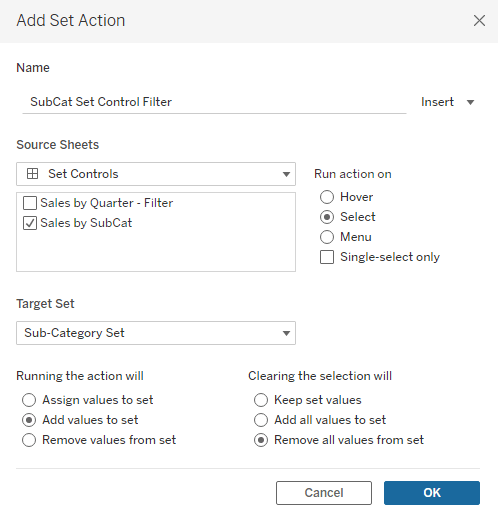
    • Under “Run action on” choose “Select”
    • Under “Running the action will” choose “Add values to set”
    • Under “Clearing the selection will” choose “Remove all values from set”
    • Click “OK”

When you’re finished your “Add Set Action” box should look like this.

So there are a couple of things we should cover here, starting with the calculated field. Here it is again.

{ FIXED : COUNTD([Sub-Category Set])}=1 OR [Sub-Category Set]

Sets only have two possible values; IN or OUT. The set may contain hundreds or even thousands of values from the source field, but the sets themselves can only have these two values. So if we use a FIXED Level of Detail expression and count the distinct values, the result will be either 1 or 2. If the set is empty, the value for every record will be OUT, so the result of the LOD will be 1. Similarly, if the set contains all values, the value for every record will be IN, so the result of the LOD will still be 1. But if some values are in the set (IN) and other values are not in the set (OUT), then the result of the LOD will be 2 (IN and OUT).

So the first part of this calculated field ( FIXED : COUNTD([Sub-Category Set])}=1) will be true for all records when the set is empty, or if it contains all values. The second part of this calculated field (OR [Sub-Category Set]) will only be true for records in the set. So when we start with an empty set, the overall result of this calculated field will be True for every record, so everything will be included in our line chart. As soon as we add a value to our set, the first part becomes false for every record, but the second part becomes true for the values in our set. Because we are using an OR operator, the overall result, once we click on some values, will be true for the selected values and false for the rest of the values.

Next, let’s look at the Set Control options. We are starting with an empty set. Each time we click on a new mark, that value will be added to our set. That’s what the “Add values to set” option does. Unlike the “Assign values to set”, it does not override the set, it just adds new values to the existing ones. And then when we click on some white space in the sheet, or the last selected value, the set will go back to being empty. That’s what the “Remove all values from set” option does.

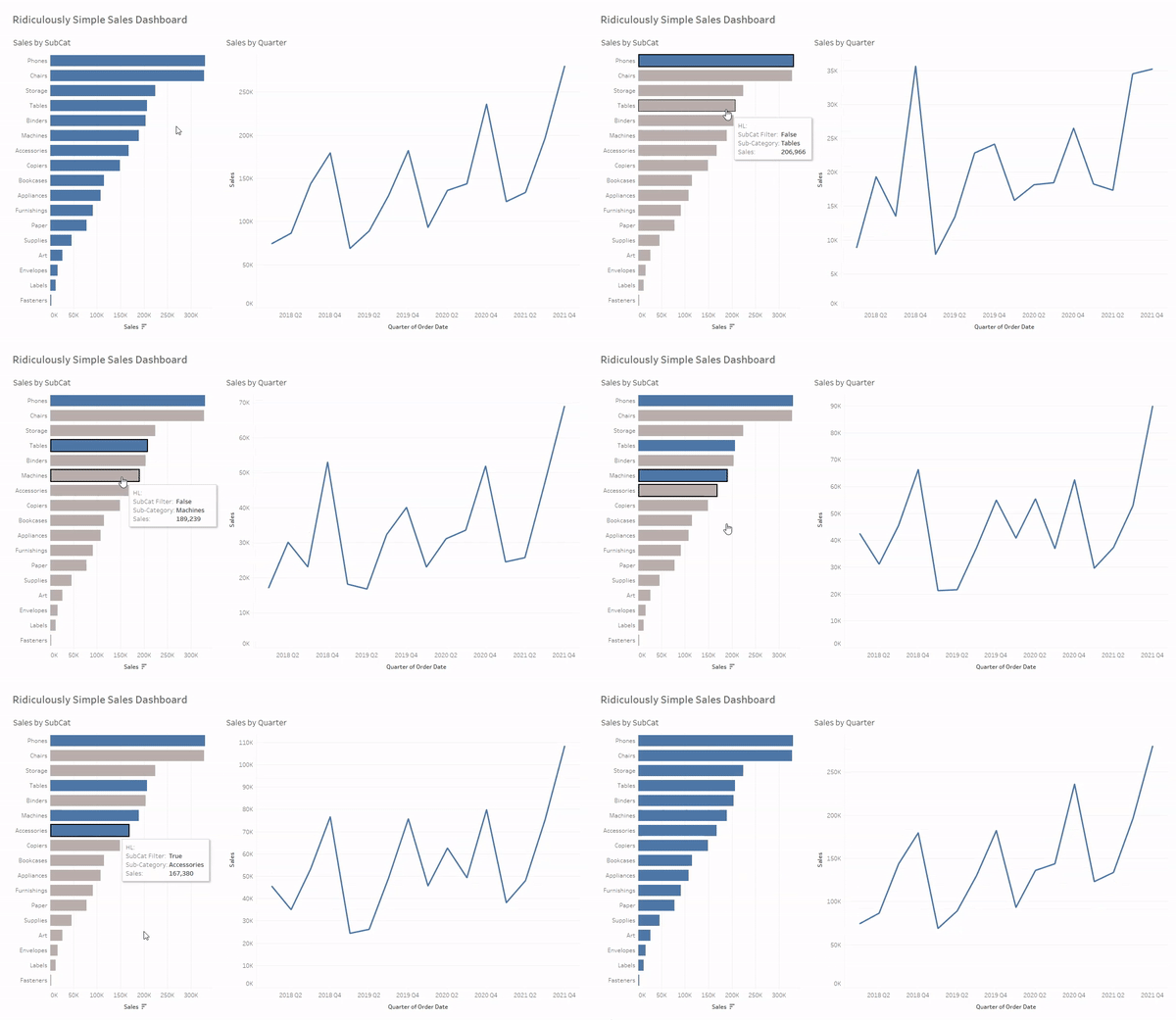
And just like in the previous example, I would recommend using the “Highlight Technique” covered here, and then adding the [SubCat Filter] field to color on the bar chart (Sales by SubCat).

And now your dashboard should look and function like this. Notice that you no longer need to CTRL click, or click and drag, to select multiple values. Nice!

Parameter Action

This method is by far the most complex, but if done correctly, it provides a really smooth user experience. The thing that I like most about this approach is that you can set it up so that you can “toggle” values in and out of the filter. There are a few extra steps in this approach, and some somewhat complex calculations. We need to create our parameter, create a calculated field that will be passed to that parameter, add that field to Detail on our bar chart, create a calculated field for our filter, add that filter to our line chart, and add the dashboard action that will update the parameter.

  • Create a string parameter called [SubCat Select] and set the “Current value” to the pipe character “|”
  • Create a calculated field called [SubCat String]
    • IF CONTAINS([SubCat Select], ‘|’ + [Sub-Category] + ‘|’) THEN REPLACE([SubCat Select],’|’ + [Sub-Category] + ‘|’,’|’)
    • ELSE [SubCat Select] + [Sub-Category] + ‘|’
    • END
  • Go to the sheet that will drive the parameter action and drag the [SubCat String] field to Detail. In this example, that is the “Sales by SubCat” sheet
  • Create a calculated field called [SubCat String Filter]
    • [SubCat Select]=’|’ OR CONTAINS([SubCat Select],’|’+[Sub-Category]+’|’)
  • Add the filter to the sheet that will be affected by the action (Sales by Quarter).
    • Drag the [SubCat String Filter] field to the filter shelf on the “Sales by Quarter” worksheet
    • Filter on “True”
  • Add the dashboard action to update the [Sub-Category Set]
    • Navigate back to the dashboard
    • Go to Dashboard > Actions and click “Add Action”
    • Select “Change Parameter” from the list of options
    • Give your Action a descriptive Name (ex. SubCat Parameter Filter)
    • Under “Source Sheets” select the worksheet that will drive the action. In this example it is our bar chart “Sales by SubCat”.
    • Under “Target Parameter” select the parameter that was set up in the previous steps. In this example it is [SubCat Select]
    • Under “Source Field” select the [SubCat String] Field
    • Under “Aggregation”, leave set to “None”
    • Under “Run action on” choose “Select”
    • Under “Clearing the selection will” choose “Keep Current Value”
    • Click “OK”

When you’re finished, your “Add Parameter Action” box should look like this

Alright, let’s talk through some of those calculations, starting with the [SubCat String] Field. Basically, what this calculation is doing is building and modifying a concatenated string of values. Here’s that calculation again.

IF CONTAINS([SubCat Select],’|’ + [Sub-Category] + ‘|’) THEN REPLACE([SubCat Select],’|’ + [Sub-Category] + ‘|’,’|’)
ELSE [SubCat Select] + [Sub-Category] + ‘|’
END

We set up our parameter to have a default value of just the pipe character (“|”). I’ll explain the use of the pipes a little later on. The first line of the calculation looks to see if the selected value is already contained in our string. So it’s searching our entire concatenated string for the pipe + selected value + pipe (ex. |phones|). If it finds that value in our string, it will replace it with just a pipe. So for our example, if our parameter value was |phones|binders|storage| and we click on phones, it will replace “|phones|” with a pipe, leaving “|binders|storage|”

The second line of this calculation will add the selected value. The calc has already tested to see if it’s there in the previous step, and if it’s not, this line will add it along with a pipe. Now let’s look at our parameter action…in action.

Take a look at the parameter at the top. As we click on each Sub-Category, its added to our string. Now look what happens when we click on those selected marks again.

As we click on each previously selected mark, that mark is removed from our string, until we’re left with just our starting value, the pipe.

The reason I use pipes on both sides, instead of just a comma separated list is to avoid situations where one potential value could be equal to a part of another value (ex. Springfield and West Springfield). The pipes ensure we are matching exact values in the next step, our filter calculation. Here’s that filter calculation again.

[SubCat Select]=’|’ OR CONTAINS([SubCat Select],’|’+[Sub-Category]+’|’)

This is pretty similar to the filter that we created in our Set Controls example. The first part is checking to see if our concatenated string is “empty”, meaning nothing has been selected yet and it’s just a pipe. If that’s the case, the result of this calculated field will be true for every record. The second part of the calculated field is checking the [Sub-Category] field in each record and seeing if that value is contained within our parameter string (along with the starting and ending pipe). If it is, the result of this calculation will be True for those records and False for all of the other records.

When using this method, I would highly, highly, highly recommend using the “Filter Action” technique for disabling the default highlighting. You can find it here. This technique not only masks the selection, but it also automatically de-selects a mark after you click on it. That is really important when using this method. Once you add that Filter Action, just add the [SubCat String Filter] field to color, and you should be good to go. Here’s what it looks like in action.

And there you have it. Four different methods for filtering your dashboards on multiple selections. As I mentioned before, some of these are much more complex than others, but they provide a much better user experience. In my opinion, it’s worth it to put in the extra time and effort to save your users frustration later on. I hope you enjoyed this post, and keep an eye out for more installments of “It Depends”.