Categories
How Did You Build That in Tableau? How-To's Tableau Techniques Totally Useless Charts

How did you build that in Tableau?

How did you build that in Tableau? That’s a question I get pretty frequently. If you look at my Tableau Public profile you may notice that most of my visualizations are pretty unique. And there’s good reason for that. Every visualization I build for Tableau Public, I try to do something I haven’t done before, and preferably, something I haven’t seen anybody else do. What I love about this approach is that I am continuously learning. I am constantly learning new techniques, combining those with other things I have learned along the way, and creating something new and, to me at least, something exciting. My favorite part about building these unique visualizations is figuring out how to do it. Sometimes it’s really challenging, but it’s also extremely satisfying when you finally figure it out and see your ideas come to life.

There are, of course, downsides to this approach. Inspiration and ideas are very hard to come by. I hear people all the time saying that they have so many viz ideas and not enough time to work on them. It’s the complete opposite for me. I will come up with one good idea every couple of months, and then spend days, weeks, sometimes months, figuring it out. That’s why I only have about 55 vizzes on my profile, even though I’ve been using Tableau Public consistently for about 4 1/2 years. That’s an average of about 12 per year. Some people seem to publish that many each month.

But it seems that every time I do publish something, I get at least a handful of messages on Twitter and LinkedIn asking “How did you build that?”, or often times, a much more general question “Can you tell/teach me how to build things like that?”

The first question is a little easier to answer, and could probably be done through a single blog post (which I plan to start doing in a new series with the same title “How did you build that in Tableau”). The second question is much harder to answer. It seems a lot of the time, people are looking for a silver bullet, one piece of advice, or one technique, that will allow them to build weird and crazy vizzes. And I really wish I had something like that to give them, but I don’t. As I mentioned earlier, every visualization I build is different. There isn’t a set technique or approach. But if I sit down and think about it, I do think there is a, at least somewhat, consistent process I go through with each build. And that’s what this post is about. This isn’t a technical walk-through, it’s more about the process. I will walk through a pretty basic example using that process, and if you’re interested in the calculations, please download the workbook here.

Step 1: The Idea

In my opinion, this is the hardest part. If you want to build something unique, you have to have a general idea of what it is you want to build. If you can imagine it, chances are there is a way to make it happen. And I am sending out an open invitation now: If you are taking the time to read this post, and you have a unique idea, but don’t know how to build it, feel free to reach out to me on Twitter or LinkedIn, and I will do my best to help you. As I mentioned earlier, I love trying to figure this stuff out.

Back to the idea. The idea gives you a starting point and something to work towards. But keep in mind that that idea is likely to change and evolve as you go through the rest of the process. I have very few examples of vizzes where the end result is exactly like what I had set out to build. It’s usually an iterative process. Come up with an idea, that idea doesn’t work the way you wanted it to work, but it sparks other ideas. Or maybe it did work, but along the way you got other ideas that would make it better. So the process I’m laying out here may not be completely sequential. You may find yourself back at this Step a few times before you build something you’re excited about.

Step 2: The Data

For me, this step and step 1 are interchangeable. I told you this process wasn’t always sequential right?

  • Sometimes I have an idea and then I go looking for the specific data I need.
  • Sometimes I come across a cool dataset, and then try to come up with ideas on how to visualize it.
  • Sometimes I have 0 ideas and I just browse Kaggle, Data.World, or Google and a dataset will spark a cool idea.
  • Sometimes I have an idea for a type of chart I want to try to build, and then go looking for any kind of interesting data I could use for that chart type.

There is no right way to do this. Think of it as writing a song. You need lyrics and you need music, but you don’t necessarily need to work on either of those things before the other. It could be a lyric or a melody that pops into your head and then you work around that. And chances are both the lyrics and the music are going to change when you start working them together.

So start with what you have and then go from there.

Step 3: The Plan

The next step is to start planning the build. You know what you want to build, but you need to figure out how to get there. If you want to start building truly unique visualizations in Tableau, you need to get comfortable with scatterplots. Nearly every single visualization on my profile is built using X and Y coordinates. I like to think of it like drawing, but more specifically, like drawing with connect-the-dots. That’s really all it is. It’s figuring out where to put the dots and how to connect them. With those two things figured out, you can draw anything you want in Tableau.

When I’m planning out my build, I like to break it out into smaller pieces. Let’s say we wanted to make this Smiley Face in Tableau, where would you start?

If I was trying to build this, I would start by figuring out the individual pieces that need to be built. In this case, I have one large yellow circle, two small black circles, and one curved black line. I don’t have to figure out how to build the entire thing at once, I just need to figure out how to build each piece and then figure out how to put them together.

I know how to draw circles in Tableau and I know how to draw curved lines in Tableau. I’m basically done. Not quite, but it’s a good start. Pretty much everything on my Tableau Public profile is built using some combination of circles and curved lines. The variety comes from combining those things in different ways. If you’re looking for more technical walk-throughs on how to build circles and curved lines in Tableau, check out the 3-part series on our blog:

For my Smiley Face, I am going to use Techniques from Part 1 and Part 2 of that series. I’m going to draw 3 circles and 1 bezier curve. I’m not going to share all of the formulas here, so if you’re interested in following along, I would recommend reading Part 1 and Part 2, and downloading the example workbook here.

Step 4: The Data Structure

This part can be difficult. Figuring out how to structure your data so you can build the pieces you need to build. If you are trying to build something unique, chances are you will not be able to use your data as is. You’ll have to put some work into it, and chances are, you’ll revisit it and change it and re-arrange it as you go through the build. The technique I typically use, I like to call a “Stacked” Densification Table. If you’re not familiar with Densification, we’re basically creating additional records in our data source that we can use in our calculations. I am blowing up my data source, but I’m doing it with purpose.

For this example, I am going to use a data source with just a single record. If I wanted to draw more than one smiley face, I could add more. But here is my “Base” data.

Object IDObject NameSize
1Smiley Face 110

Now I’ll create my Densification Table. I’ll start by adding records to “draw” my first object; the Left Eye.

TypePoints
Left Eye1
Left Eye2
Left Eye3
Left Eye
Left Eye20

I used 20 points, which works pretty well for smaller circles. The more points you add, the smoother your curves/circles will appear. Curves in Tableau are essentially a bunch of really short straight lines, so the more lines you have, the shorter those lines will be, and the smoother the curves will appear.

Now, in the same table, I’ll add another 20 records for the Right Eye.

TypePoints
Left Eye1
Left Eye
Left Eye20
Right Eye1
Right Eye2
Right Eye3
Right Eye
Right Eye20

Then I’m going to add 100 points for the body or face or whatever you want to call it. I’m using more points for this because the circle is much larger. Then I’ll add another 50 points for the mouth. The end result should be a table with 190 records; 20 for the Left Eye, 20 for the Right Eye, 100 for the Body, and 50 for the Mouth

The reason I like to set it up this way is that I can use different calculations and different techniques on each section, or Type, and then combine them later using a couple of simple calculations.

The last step in setting up my data source is to join these 2 tables using a physical join and a join calculation.

Step 5: The Build

Once I have my data structure in place, it’s time to start building. When I’m on Step 3 and planning out my build, I identify the individual pieces that need to be built. When I’m on Step 4 and building out my data source, I create the data I need to build each one of those individual pieces. And when I’m on Step 5 and actually building the viz, I work on each one of those pieces individually. I’m going to start with the body/face because it’s the biggest and because the position of all of the other pieces are going to rely on that piece.

The Build Part A: Building the Circles

My first step in building this circle would be to go to a new worksheet, and filter on Type = Body, because that’s the piece I’m working on first. My next step would be to build the calculations. If you looked at Part 1 of the Fun with Curves series, you’ll know that in order to draw a circle in Tableau, we need two inputs; the distance of each point from the center of the circle (the radius), and the position of each point around the circle.

In this case, I’m going to use the [Size] field from my data source for the size of the body/face circle. That value is going to represent the Area of the circle, so I’ll calculate the radius using that, and that will be the first input. Once I have that, and the Position input, I plug those into my X and Y calculations and build the circle. When I’m done, it will look something like this.

So far so good.

Next, I’m going to build the Left Eye. When I’m building something like this, I like to parametrize everything, so I can easily tweak the size and position of things, and so that the sizing will stay consistent, even if the values in the data change. And I always choose an “Anchor” value. Something I can use along with those parameters to calculate “relative” values for everything else. For this build, I’ll use the radius of the body/face as the “Anchor” because all of the other objects are going to go inside of (or really on top of) that main circle.

So in this case, I’ll build a parameter and set the value to .1 to start. Now, to calculate the radius for the eyes, I just multiply that parameter by the radius of the body/face. By using this technique, I can ensure that the radius of the eyes will always be 1/10th of the radius of the body/face. And I can also tweak that value to easily make the eyes larger or smaller.

My next step would be to repeat the process I used to build the body/face to build the left eye. I would go to a new worksheet, filter on Type = Left Eye, plug my eye radius and position into the X and Y calcs and build my circle. Then repeat for for the Right Eye.

The Build Part B: Placing the Circles

At this point, I would have 3 sheets and 3 sets of X and Y coordinates, one for each of the objects. Now I would bring them together with a couple of simple calculations called “Final_X” and “Final_Y”, which are just CASE statements that look at the TYPE field from my densification table and return the values of the appropriate X and Y fields that I have already calculated for each type.

Then I would go to a new sheet, filter on my 3 Types, and build the circles using those “Final” X and Y fields.

When I’m done, it would look something like this.

Hmmm, that looks exactly like the “Body” worksheet. One thing to always keep in mind when layering these objects is how Tableau sorts them. In this case, Tableau sorted the “Types” alphabetically, so the Body is in front of the Left Eye and Right Eye. So next, I would click on the color legend and drag Body to the bottom and the objects will sort correctly. With a lot of objects, sometimes this sorting piece can become pretty complicated. Once sorted, it would look something like this.

Now unless I was building a cyclops smiley face, this still doesn’t look right. As it stands now, all of my circles have the same starting point. They all start at 0,0 and build around that. I want the Body to start at 0,0 but I need to offset the eyes to get them in the right position. Basically, the eyes need new starting points.

Offsetting these values is really easy. If you want to move something up? Add a positive value to it’s Y coordinate. Want to move something down? Add a negative value to it’s Y coordinate. To the right? I’m sure you’ve guessed it, add a positive value to the X coordinate.

This is something I struggled with early on, but once I understood it, it became really simple. Basically, what I am trying to do is to create a new starting point for each of these circles, instead of starting them at 0,0. And to do that, all I have to do is add those new starting coordinates directly to the X and Y calcs for each of the circles, and all of the other points I have already calculated to form those circles, will move accordingly.

Once again I would use parameters to determine how far to move the circles, one for moving them up and down, and one for moving them left and right. Then it’s just a matter of multiplying those parameters by my “Anchor” value, the radius of the body/face, to get the actual values and then adding (or subtracting) those values to the X and Y fields for the Left and Right Eye.

After moving the eyes, I have something like this.

It’s starting to look pretty good, but, in my opinion, those eyes look a little too small, a little bit too spread out, and just a touch too high. This is why I use parameters. Now I can easily tweak all of my parameters to change the look of it.

This looks much better, but now I notice another problem. Now that I made the eyes a little bigger, I can really see the lines instead of a smooth curve. This happens to me pretty frequently, but there is an easy fix. I go back to my data source and add more rows to the “Stacked” Densification table for the Left Eye and the Right Eye. If I increase that count to 40 (from 20), it looks much better. No more jagged lines.

The Build Part C: Building the Line

Now for the mouth. Like most things in Tableau, there are a couple of ways to accomplish this, but I am going to use a bezier curve. And I am going to start on this the same way I started with the circles, with a fresh worksheet filtered on the object I’m working on (in this case [Type] = Mouth).

To draw a bezier curve, I need the coordinates for 3 points…the Start of the line, the End of the line, and the Mid-point. And, just like I did for the eyes, I’m going to create some parameters so I can play with how the mouth looks. I’m going to create a total of 3 parameters; 1 for the width of the mouth, one for the vertical starting position of the line, and one for how far down the line dips. And again, just like I did for the eyes, I’m going to multiply these by the “Anchor” value to calculate the coordinates.

Once I have all of my calculations and I plug them into the X and Y calculations for bezier curves, I have something like this.

Now I have my curved line, but I can’t really tell what it’s going to look like until I place it on my Smiley Face. So I’ll do that next.

The Build Part D: Placing the Line

Now this part is a little tricky. I have my “Final_X”and “Final_Y” calcs that I used to bring the three circles together in the same view. But now I have 2 different mark types; Polygon for the Circles, and Line for the Mouth. So here is a technique I use to bring different Mark Types together on the same view.

I need to create a Dual Axis chart, so I can assign a different Mark Type to each axis. So Instead of “Final_X”, I would build “Final_X_Circle”, which would include all of my Circle X calculations, and “Final_X_Line”, which would include all of my Line X calculations. For each of those Fields, the result would be populated for the included “Types” and NULL for all other Types.

Then, I would add all of the Types to the “Final_Y” calculation. If I built separate calculations for the Mark Types here, I would not be able to layer them together in the view.

So I end up with a common measure for the Y axis, and two different measures for the X axis

Now I can create a dual axis chart, and set the appropriate mark type for each of my Types. With a few more minor tweaks, I have something like this.

Now, just like I did with the eyes, I can play around with the parameters to get the smile to look how I want.

Step 6: Ideate & Iterate

At this point, I have built what I set out to build, so I should stop right? As I mentioned earlier, as I’m working through this process, I usually have other ideas to try out. Now that the foundation is built, how can I make it better?

What if I added another record to my “Base” data?

What if I added 100 records and made a 10×10 panel chart?

What if I put some real data behind this? Since I’m working with Smiley Faces, how about data from the World Happiness Report? What if I made them all the same size, but used color for the Happiness Score?

That’s looking better. But maybe the faces with the lower scores should be frowning instead of smiling. What if I could use the score to control the shape of the mouth too?

Now what if I used population on Size?

Hmmm, that doesn’t really work. Most of those faces are way too small. I would need to make them all bigger, but I can’t really do that with a panel/trellis chart. But what if I made this into a Packed Bubble Chart and limited it to the 50 largest Countries?

Ooohh, now we’re getting somewhere. Now what if I grouped the countries by Continent?

That’s it! That’s the one. Now it may seem like a huge leap going from a single smiley face to this, but it was actually a really easy update. I set up everything with parameters and used “Anchor” values, so no matter how many records I added to my data source, I would have a smiley face, with the correct proportions for the features, for every record.

And moving from a Panel Chart to a Packed Bubble chart was easy as well. CJ Mayes has a really great tutorial on Circular Packing, which is what I used. The output of that process is a file with an X coordinate, a Y coordinate, and a Radius for each circle. That means I could take what I had already built, and just add the X coordinate to my “Final” X calcs, and the Y coordinate to my “Final” Y calc to give all of my circles a new starting point. Then I swapped out the Radius calc I had used for the body/face with the one in the output. Because everything else I built was Anchored to that Radius value, everything updated and moved automatically.

Step 7: Final Touches

Now that I have built something I’m happy with, it’s time to finish off the design. I typically don’t spend a lot of time on this. If you look at my profile you’ll notice that nearly all of my vizzes are a single unique chart, with a light background, a title, some text, and some ways to interactive with the viz. I’m not a great designer, so I try not to put too much effort into the design. Also, I spend a lot of time building those charts, and I want those to be the focal point.

If I was going to publish this, it would probably look something like this.

I would play around with the design of the chart a little bit, add a Title and Subtitle, and some text describing the chart. If I was going to publish this I would also probably add some kind of interactivity to highlight specific countries to make them easier to find, and maybe bring this into Figma to add some labels for the continents. But, since I’m not publishing it, this seems like a good place to stop.

Wrap-Up

I hope you found this helpful. This is the exact process I would have gone through if I was trying to build a Smiley Face in Tableau. I know it is, because I wrote this post as I was building it. This was my actual process from trying to build this:

To actually building this:

As I mentioned earlier, there isn’t a single, universal technique that will let you build anything and everything in Tableau, but there is a process you can follow that may help you. I know it helps me. The most important parts of that process, in my opinion, are Step 1, Step 3, and Step 6.

Coming up with unique ideas is tough, but you have to know what you want to build, or at least attempt to build, before you can start building it. If you don’t have an idea, start looking for some interesting datasets, and then think of unique ways you can visualize it.

And then you have to plan. If you just sit down with an idea and start writing calculations, maybe you’ll get there, maybe you won’t, but your chances will increase significantly if you have a plan. These builds can be overwhelming, so you’ll want to break it down into smaller, more manageable pieces. Work on those pieces individually, and then start bringing them together. I recently published a few games, and although the goal of those was completely different than one of my visualizations, the process was exactly the same. I broke it down into smaller pieces. How would I build and position each of the pieces? What are the rules for the game? What has to happen each time a user clicks? What restrictions should there be when it’s time to make a move? How would a winner be determined? I sat down and thought through all of these questions before I ever opened Tableau and I came up with a plan for addressing each of them.

And then once you have something built, experiment with it. Every change you make might not be an improvement, but it’s still worth trying. Maybe you’ll love it, or maybe it’ll spark other ideas you can experiment with. Or maybe you’ll have to hit undo 100 times. It doesn’t matter, try it anyways.

If you use this process for a new visualization, or if you have your own process, please reach out and tell me about it. And, as I mentioned earlier, if you have a unique viz idea but can’t figure out how to build it, reach out and I’ll do my best to help. And keep an eye on our blog for the new series “How Did You Build That in Tableau”, where we’ll walk through the process of how we built specific vizzes.

Categories
How-To's Tableau Techniques

Gradient Chord Chart

Chord charts are a great way to display and quantify relationships between entities, but there are some limitations. Recently, I built a series of chord charts to show which actors have appeared together in films, and how often. Once I had built out the charts and attempted to add some color, I hit a wall. In some cases, when building these relationship diagrams, there is a logical directional flow to the relationship. Something moves from Entity 1 (Source) to Entity 2 (Target). In those cases, its easy to assign meaningful color to the chart. You can assign it by Source if you want to highlight where things are flowing from, or you can assign it by Target if you want to highlight where things are flowing to. But what if there is no flow to the relationship? How do you assign color then?

This roadblock got me thinking. If I want to add a unique color to each Entity in my chart, and there is no directional flow, then the color of the chord should be a blend of the two colors. Or better yet, it should transition from one color to the other. I have seen others do some really cool stuff with applying gradients to “solid” chart types. Ken Flerlage has an excellent post here about applying gradients to Bar Charts and Area Charts. There’s another great post from Ivett Kovacs about gradients here. Some different techniques, but the foundation is the same. If you want to apply a gradient to an otherwise “solid” chart, use a series of thin lines to “color in” the chart. So that’s exactly what I did.
I’ll warn you ahead of time, this is going to be a long post. But if you’re just interested in building one of these charts, and not so much in how to build it, I’ve got some templates for you to use. Just follow the instructions in the “Setting Up Your Data Source” section below, and swap out the data source in the template workbook. You can download the template here, and download the sample data here.

Setting Up Your Data Source

In the sample data (link above), there are two tabs; one for our data, and one for densification. You do not need to make any changes to the Densification table, but I’ll talk through the setup as we build each section of this chart. In the Base Data, you should only update the first four columns and not the calculated fields (red text) in the next five columns. Here is a quick explanation of each field and what it represents

From_ID: Unique Identifier for each Source entity. This should be a sequential number starting at 1 and ending at however many entities you have in your data. For each entity, you may have multiple rows, one for each relationship, but they should all have the same From_ID.

From_Name: A display name for each Source entity.

To_Name: A display name for the other entity in the relationship, or the “Target”.

Value: The measure being displayed. In the sample data, this value field represents the number of movies that the two actors appeared in together.

The following fields should not be changed. They will update automatically based on the first 4 columns, but here is a quick description of what they are calculating.

To_ID: This is a lookup to get the correct ID for the Target entity

From_Total: This is a sum of the Value field for each Source entity

From_Run_Total: This is a running total of the Value field

Unique_Relationship: This is a unique identifier for the relationship

Unique_Relationship_Order: This is used to identify the first and second occurrence of each Unique_Relationship (there will be two rows for each relationship, one where Actor 1 is the Source and Actor 2 is the Target, and one where Actor 2 is the Source and Actor 1 is the Target).

If you are building these charts from scratch, I would still recommend downloading the template to see how the Data Source is set up. In order to get the running total value for the Target, or the end of each chord, we are doing a self-join in the Physical Layer on the Base Data table (see below for join conditions). Then, we are re-naming the [From_Run_Total] field from the right side of that join (Base Data1) to [To_Run_Total]. And then we are joining to the Densification table using a join calculation (value of 1 on each side). Here is what the joins look like in our data source.

Building the Chart

This chart is actually comprised of 4 different sections, identified by the ShapeType field in the densification table. There are the outer polygons (Outer_Poly), the gradient chords (Inner_Lines), the borders for the gradient chords (Inner_Lines_Border), and a small rounded polygon on the end of each chord (Lines_End_Poly) to fill the gap between the chords and the outer polygons.

An image showing the 4 unique sections that make up the gradient chord chart

Before we start working on any of these individual sections, there are a number of calculations that we are going to need for all of them.

First, let’s create a parameter that will let us control the spacing between each of the outer polygons. Call this parameter [Section Spacing], set the data type to Float, and set the value very low, around .01. Once you have the chart built you can set this higher for more spacing, or lower for less spacing.

Now let’s use that parameter, along with the Max of our running total field from the data source (which represents the grand total of the [Value] field), to calculate the width of our spacing between polygons. We’ll call this [Section Spacing Width]

Section Spacing Width = [Section Spacing]*{MAX([From Run Total])}

Now we need an adjusted grand total that accounts for all of the spaces as well. We’ll call this [Max Run Total – Adj] and it will be our grand total plus the number of spaces * the width of the spaces.

Max Run Total – Adj = {MAX([From Run Total])+MAX([From ID]*[Section Spacing Width])}

Next, we want to calculate the position around the circle where each of our sections, or entities, will start. We’ll do this by subtracting the [Value] field from the running total, adding the spacing for all previous sections, and then dividing that by our adjusted grand total. Call this field [Section_Start].

Section_Start = { FIXED [From ID] : MIN(([From Run Total]-[Value]) + (([From ID]-1)*[Section Spacing Width]))} / [Max Run Total – Adj]

Now we need to do the same thing to calculate the position around the circle where each section ends. The only difference between this and the previous calc, is that we are going to use the running total without subtracting the value. Call this field [Section_End]

Section_End = { FIXED [From ID] : MAX([From Run Total] + (([From ID]-1)*[Section Spacing Width]))} / [Max Run Total – Adj]

Now for an easy one. Let’s calculate the width of each section by subtracting the [Section_Start] from the [Section_End]. Call this [Section_Width].

Section_Width = [Section_End]-[Section_Start]

Next, we need to do the same thing to get the start and end positions for each of the “sub-sections”, or each of the entity’s relationships. The calculations are almost identical, the only difference is that we are fixing the Level of Detail calculations on [From_ID] and [To_ID], instead of just [From_ID]. Call these calculations [From_SubSection_Start] and [From_SubSection_End].

From_SubSection_Start = { FIXED [From ID],[To ID] : MIN(([From Run Total]-[Value]) + (([From ID]-1)*[Section Spacing Width]))} / [Max Run Total – Adj]

From_SubSection_End = { FIXED [From ID],[To ID] : MAX([From Run Total] + (([From ID]-1)*[Section Spacing Width]))} / [Max Run Total – Adj]

And just like before, we’ll create a simple calculation to get the “width” of these sub-sections. Call this calculation [SubSection_Width].

SubSection_Width = [From_SubSection_End]-[From_SubSection_Start]

Next, we need to do the same thing, but need to calculate the start and end position for the other end, or Target, of each relationship. The calculations are the same as above except we’ll use the [To_Run_Total] instead of [From_Run_Total] and [To_ID] instead of [From_ID]. Call these calculations [To_SubSection_Start] and [To_SubSection_End].

To_SubSection_Start = { FIXED [From ID],[To ID] : MIN(([To Run Total]-[Value]) + (([To ID]-1)*[Section Spacing Width]))} / [Max Run Total – Adj]

To_SubSection_End = { FIXED [From ID],[To ID] : MAX([To Run Total] + (([To ID]-1)*[Section Spacing Width]))} / [Max Run Total – Adj]

And finally, we need a simple calculation to get the total number of points for each of our shape types. Call this calculation [Max Point].

Max Point = { FIXED [Shape Type] : MAX([Points])}

Densification

Before we move on, let’s take a look at our densification table. In this table, we have 5 fields.

Shapetype: Corresponds to the 4 sections of the chart mentioned previously.

Points: Used, along with Side, to calculate the positions of every point, in every element of the chart.

Order: Used on Path to tell Tableau how to connect our Points.

Side: Used to differentiate between the interior and exterior “lines” for the outer polygons and chords.

Line ID: Used on Detail to segment our lines appropriately. For all sections of the chart, other than the Inner_Lines, this value will be 1, since we want one continuous line for the polygons, and for the borders of the chords. For the Inner_Lines, we have values from 1 to 1,000, so we can “color” our chart with up to 1,000 lines per chord.

These fields are used in slightly different ways in each section of the chart, so we’ll talk about them more as we start building.

Building the Outer Polygons

First, let’s take another quick look at our densification table. For the outer polygons, identified by Shapetype=Outer_Poly, we have a total of 50 records. The Order field, used to tell Tableau how to connect the points, is a sequential number from 1 to 50. Then there is the Points field, which is used to calculate the position of each point around the circle. This number goes from 1 to 25, where the Side field = Min, and repeats where the Side field = Max. This will allow us to draw two parallel lines (Min and Max), and then connect them together to create those outer polygons. And lastly, the Line ID has a value of 1 because we are “drawing” one continuous “line” for each of these polygons. Clear as mud right? Here’s a quick illustration to help visualize how these fields function together.

This image shows side by side how the Points and Order fields are used

Before we start building the calculations for this section, we need a few parameters. The first is just going to be a generic value for the radius of our circle. The second, is going to determine the thickness of these outer polygons.

Create a parameter called [Radius], set the data type to Float and set the Current value to 10. This can be any number you want, it doesn’t really matter, we just need something to determine the size of our chart.

Next, create a parameter called [Outer_Poly_Thickness], set the data type to Float, and set the Current value to 1. You can play around with this number to get the thickness you want, but I would recommend setting it somewhere around 10% of the [Radius] value.

Now for our calculations. Going back to Part 1 of the Fun with Curves in Tableau Series, we know that we need 2 inputs to plot points around a circle. We need the distance of each point from the center of the circle, and we need the position of each point around the circle. Let’s start with the distance.

In the image from earlier in this section, we see that we need two lines that follow the same path, one for Min and one for Max. So these two lines will have different distances from the center. For the Min line, we’ll just use the [Radius] of our circle. For the Max line, we’ll use the [Radius] plus our [Outer_Poly_Thickness] parameter. Create a calculated field called [Outer_Poly_Distance].

Outer_Poly_Distance = IF [Side]=”Min” THEN [Radius] ELSE [Radius]+[Outer_Poly_Thickness] END

Next, we need to calculate the position of the points. Each of our polygons are going to be different lengths, depending on the [Value] field in our data source, so we need to calculate the spacing of each point (to evenly space 25 points along the two “lines”). Earlier, we calculated the start and end position for each of these polygons, and we’ll use those to calculate the spacing, or “width”, that each point covers. Create a calculated field called [Outer_Poly_Point_Width].

Outer_Poly_Point_Width = [Section_Width]/([Max Point]-1)

And now we’ll use that, along with the start position of each polygon, to calculate the position for each of our 25 points. Point 1 will be positioned at the start of the polygon, Point 25 will be positioned at the end of the polygon, and the remaining 23 points will be equally spaced between those two points. Call this calculation [Outer_Poly_Point_Position].

Outer_Poly_Point_Position = [Section_Start]+(([Points]-1)*[Outer_Poly_Point_Width])

Now we have the two inputs needed to calculate all of our points for these outer polygons. We just need to plug them into our X and Y calculations.

Outer_Poly_X = [Outer_Poly_Distance]* SIN(2*PI() * [Outer_Poly_Point_Position])

Outer_Poly_Y = [Outer_Poly_Distance]* COS(2*PI() * [Outer_Poly_Point_Position])

Let’s pause here and build a quick view to test out our calculations so far.

  • Drag [ShapeType] to filter and filter on “Outer_Poly”
  • Change Mark Type to Polygon
  • Right click on [Outer_Poly_X], drag it to Columns, and when prompted, choose Outer_Poly_X without aggregation
  • Right click on [Outer_Poly_Y], drag it to Rows, and when prompted, choose Outer_Poly_Y without aggregation
  • Drag [From_ID] to color
  • Right click on [Order], convert to Dimension, and then drag to Path

If all of the calculations are correct, your sheet should look something like this.

An image showing what the outer polygons should look like

One section down, three more to go.

Building the Line End Polygons

Next, let’s build the small rounded polygons that are going to go at the end of each of our chords. The calculations will be pretty similar to the previous section. For those outer polygons, we essentially drew two curved lines that followed the same path, and then connected those lines by using the Polygon Mark Type, and using our [Order] field on Path. Now, we basically want to do the same thing, but with a few minor differences. Instead of drawing two lines, we only need to draw one. Tableau will automatically connect our first and last point, resulting in a small semi-circle. The other difference is that instead of drawing one polygon for each entity (actor in this example), we need to draw a polygon for each relationship.

To draw these polygons, we need the same exact 5 calculations as we did in the previous section, but with some modifications. To start, let’s build a parameter to control the spacing between these polygons, and the outer polygons. Call this parameter [Poly_Spacing], set the data type to Float, and set the current value to .25. Again, once the view is built, you can play with this parameter to get the spacing you want.

Next, we need to calculate the distance of our points from the center of the circle. We’ll do this by subtracting our [Poly_Spacing] value from the [Radius] . Call this calculation [Line_End_Poly_Distance].

Line_End_Poly_Distance = [Radius]-[Poly_Spacing]

Next, we need to calculate the position for our 25 points, just like we did in the previous section. The only difference here, is that instead of using the section start and section end, we’re going to use the sub-section start, and sub-section end, since we need to create these for each relationship. Call this calculation [Line_End_Poly_Point_Width].

Line_End_Poly_Point_Width = [SubSection_Width]/([Max Point]-1)

Using that, along with our Subsection start calculation, we can calculate the position of all 25 points for these polygons. Call this calculation [Line_End_Poly_Point_Position].

Line_End_Poly_Point_Position = [From_SubSection_Start]+(([Points]-1)*[Line_End_Poly_Point_Width])

And now we just need to plug these inputs into our X and Y calculations.

Line_End_Poly_X = [Line_End_Poly_Distance]* SIN(2*PI() * [Line_End_Poly_Point_Position])

Line_End_Poly_Y = [Line_End_Poly_Distance]* COS(2*PI() * [Line_End_Poly_Point_Position])

Once again, let’s pause to check our work.

  • Drag [ShapeType] to filter and filter on “Line_End_Poly”
  • Change Mark Type to Polygon
  • Right click on [Outer_Poly_X], drag it to Columns, and when prompted, choose Outer_Poly_X without aggregation
  • Right click on [Outer_Poly_Y], drag it to Rows, and when prompted, choose Outer_Poly_Y without aggregation
  • Drag [From_ID] to Color
  • Drag [To_ID] to Detail
  • Right click on [Order], convert to Dimension, and then drag to Path

When complete, the line end polygons should look something like this.

An image showing what the line end polygons should look like

We’re halfway there! Kind of…

Building the Inner Line Borders

Now we need to build our chords. Let’s start with the borders since those are a little more straightforward, and will make the last section a little easier to understand.

Going back to Part 2 of the Fun with Curves in Tableau Series, we know that we need 3 sets of coordinates to create our bezier curves; one for the start of the line, one for the end of the line, and one for the mid-point. Since we’re building a chord chart, we’ll use 0,0, for the mid-point. So that just leaves the start and end of our lines.

As always, we’ll need 2 inputs to calculate these coordinates, the distance and position. The distance is easy. It’s going to be the same distance as our Line End Polygons, [Radius] – [Poly_Spacing]. The position is a little more tricky.

For each of our chords, we’re going to need 2 lines, one for the interior, or Min, line, and one for the exterior, or Max line.

An image showing the two lines, the Min and Max, that will be used to create the chords

Notice the Min Line, starts at the end of the first chord, or sub-section, and then ends at the start of the target sub-section. The opposite is true for the Max Line. This line starts at the start of the first chord, and ends at the end of the target sub-section. We have already calculated the position for all of those sections, so we can plug those into our X and Y calcs to get our coordinates. We’ll need two sets of calculations, one for the starting coordinates and one for the ending coordinates.

Chord_X_Start = if [Side]=”Min” then ([Radius]-[Poly_Spacing])* SIN(2*PI() * [From_SubSection_End])
else ([Radius]-[Poly_Spacing])* SIN(2*PI() * [From_SubSection_Start])
END

Chord_Y_Start = if [Side]=”Min” then ([Radius]-[Poly_Spacing])* COS(2*PI() * [From_SubSection_End])
else ([Radius]-[Poly_Spacing])* COS(2*PI() * [From_SubSection_Start])
END

Chord_X_End = if [Side]=”Min” then ([Radius]-[Poly_Spacing])* SIN(2*PI() * [To_SubSection_Start])
else ([Radius]-[Poly_Spacing])* SIN(2*PI() * [To_SubSection_End])
END

Chord_Y_End = if [Side]=”Min” then ([Radius]-[Poly_Spacing])* COS(2*PI() * [To_SubSection_Start])
else ([Radius]-[Poly_Spacing])* COS(2*PI() * [To_SubSection_End])
END

These calculations may look complicated, but they’re all relatively simple. They are all using the same distance input (Radius – Poly Spacing), and then depending on if it’s the Min line or the Max line, and if it’s the Start or End of the line, we’re plugging in the appropriate position field (From_SubSection_Start, From_SubSection_End, To_SubSection_Start, and To_SubSection_End).

Those four calculations will give us the 2 remaining sets of coordinates needed to draw our bezier curves. So let’s plug all of our coordinates into the bezier X and Y calculations. But first, we need to calculate [T] to evenly space points along our lines.

T = ([Points]-1)/([Max Point]-1)

Chord_X = ((1-[T])^2*[Chord_X_Start] + 2*(1-[T])*[T]*0+[T]^2*[Chord_X_End])

Chord_Y = ((1-[T])^2*[Chord_Y_Start] + 2*(1-[T])*[T]*0+[T]^2*[Chord_Y_End])

Let’s pause again and make sure our calculations are working as expected.

  • Drag [ShapeType] to filter and filter on “Inner_Lines_Border”
  • Change Mark Type to Line
  • Right click on [Chord_X], drag it to Columns, and when prompted, choose Chord_X without aggregation
  • Right click on [Chord_Y], drag it to Rows, and when prompted, choose Chord_Y without aggregation
  • Drag [From_ID] to Color
  • Drag [To_ID] to Detail
  • Drag [Line_ID] to Detail
  • Right click on [Order], convert to Dimension, and then drag to Path

When finished, your bezier curves should look something like this. There should be two lines for each relationship in your data source.

An image showing what the chord borders should look like

We’re getting close!

Building the Inner Lines

Here’s the fun part. This is the section that really makes this chart unique. And guess what…we already built all of the calculations needed to make this work. Go the sheet you built in the previous section, and change the filter from Inner_Lines_Border to Inner_Lines…I’ll wait. Pretty cool right? These may look like polygons, but really, each of these chords is being “colored” with 1,000 individual lines. Go ahead and click on a few to see for yourself.

This is what one of those chords would look like if we had used 50 lines instead of 1,000.

An image demonstrating how the gradient lines are used

So how does this work? How were we we able to use the same exact calculations for the chord borders, and these inner lines, when all we did was change a filter? It’s all in how we set up the densification table.

For both of these sections, we used the [Points] field in the same way…to calculate the position of each point along the chords. The [Line ID] and [Order] fields are where the magic happens.

Let’s look at the chord borders first.

An image showing how the Order and Line ID fields are used for the chord borders

For these lines, the [Order] field has sequential numbers from 1 to 50, and the [Line ID] field has just two values, 1 and 2. With [Line ID] on Detail, and [Order] on Path, this will draw 2 curved lines.

Now look at the inner lines.

An image showing how the Order and Line ID fields are used for the chord gradients

For these lines, the [Order] field has just two values, 1 and 2, and the [Line ID] field has sequential numbers from 1 to 50 (up to 1,000 in the final chart). In this case, when you put [Line ID] on Detail, and [Order] on Path, it will draw 50 straight lines.

So using the same exact calculations, but getting a little creative with our data source, we can draw both the borders of our chords, and “color” them in. Now let’s bring all of these sections together. We’re almost done!

Building the Final Chart

So now we have all of the calculations done for the four sections of our chart. Time to bring them together. In this viz we have two different Mark Types that we are trying to use together; Polygons and Lines. So we’ll need to use a dual axis and create a calculation for each mark type. All of our sections will share the same Y calculation, but we’ll have an X calculation for the polygon sections, and an X calculation for the line sections. These will all be simple case statements to use the appropriate X and Y values for each section of the chart.

Final_X_Line

CASE [Shape Type]
WHEN “Inner_Lines” then [Chord_X]
WHEN “Inner_Lines_Border” then [Chord_X]
END

Final_X_Poly

CASE [Shape Type]
WHEN “Outer_Poly” then [Outer_Poly_X]
WHEN “Line_End_Poly” then [Line_End_Poly_X]
END

Final_Y

CASE [Shape Type]
WHEN “Inner_Lines” then [Chord_Y]
WHEN “Inner_Lines_Border” then [Chord_Y]
WHEN “Outer_Poly” then [Outer_Poly_Y]
WHEN “Line_End_Poly” then [Line_End_Poly_Y]
END

Now to build our view. Let’s start with the Line sections.

  • Change Mark Type to Line
  • Right click on [Final_X_Line], drag it to Columns, and when prompted, choose Final_X_Line without aggregation
  • Right click on [Final_Y], drag it to Rows, and when prompted, choose Final_Y without aggregation
  • Drag [From ID] to Detail
  • Drag [To ID] to Detail
  • Drag [ShapeType] to Detail
  • Drag [Line ID] to Detail
  • Drag [Order] to Path

When this part is complete, your chart should look something like this.

An image showing what the chart should look like with the gradient lines

Now, let’s add our polygons.

  • Right click on [Final_X_Poly], drag it to the right of [Final_X_Line] on the Columns shelf, and when prompted, choose Final_X_Poly without aggregation
  • Right click on the green [Final_X_Poly] pill on the columns shelf and select “Dual Axis”
  • Right click on one of the axes, and select “Synchronize Axis”
  • On the Marks Card, go to the Final_X_Poly card and change the Mark Type to Polygon
  • Remove the [To ID] field from Detail
  • Remove the [Line ID] field from Detail
  • Drag the [Unique Relationship] field to Detail

At this point, your chart should look something like this.

An image showing the chart with all 4 sections included

Woohoo, our chart is built! Before we start fine tuning our design, there are a few filters we should add. All of these will improve performance, but one of them is needed to accurately color our chart.

First, for our outer polygons, there are actually a number of identical polygons stacked on top of each other. The way our data is set up, it’s creating one of these polygons for each relationship for each entity. But we only want one polygon per entity. This will not only improve performance, but also fix some weird display issues that happen on Tableau Public. It doesn’t happen all the time, but sometimes when you have multiple identical polygons stacked on top of each other, the curved lines end up looking jagged and weird. So this will help fix that. This filter will include anything that’s not an outer polygon, and only the first outer polygon for each entity. We’ll call this [Single_Outer_Poly_Filter].

Single_Outer_Poly_Filter = [Shape Type]!=”Outer_Poly” or ([Shape Type]=”Outer_Poly” and [To ID]={ FIXED [From ID] : MIN([To ID])})

Drag that to the Filter shelf and filter on True.

This next calculation helps with performance and also ensures an accurate color calculation in the next section. For each of our chords, as it stands now, there are actually two sets of lines stacked on top of each other. That’s because each unique relationship has two rows in our source data (one where Actor 1 is the Source and Actor 2 is the Target, and one where Actor 2 is the Source and Actor 1 is the Target). This calculation will keep all of the records for our two polygon sections, but for the line sections, it will only keep the first occurence of each relationship. Call it [Unique_Relationship_Filter].

Unique_Relationship_Filter = CONTAINS([Shape Type],”Poly”) or (not CONTAINS([Shape Type],”Poly”) and [Unique Relationship Order]=1)

Drag that to the Filter shelf and filter on True.

This last one is purely for performance and is completely optional. Depending on how large this chart will be in your viz, you may not need 1,000 lines to color the chords. You can use a parameter and a calculated field to set the number of lines you want to use. First, create a parameter called [Gradient Lines], set the data type to float, set the max value to 1,000, and set the current value to about 750. Then create a simple calc called [Gradient_Line_Filter].

Gradient_Line_Filter = [Points]<=[Gradient Lines]

Drag this field to the Filter shelf and filter on True. Then, right click on the blue pill, and select “Add to Context”.

Alright, now we’re ready to move on to Design!

Adding Color to the Chart

This part took me a little while to figure out. The goal is to be able to have a unique color for each of the entities, and then have the chord between them, transition from one of the entity’s colors, to the other. We have our [From_ID] field that is a sequential number for each entity, so that’s what we’ll use to color our polygons.

To color our chord borders, we’re going to use a parameter with a value lower than our first [From ID], and I’ll talk more about this a little later on. For now, create a parameter called [Color Range Start], set the data type to Float, and set the current value to .5.

To color the gradient lines, we’ll need a few calculations. The first thing we need to do, is calculate an evenly spaced value between the ID for the Source entity and the ID for the Target entity. For example, if we have a chord going from entity 1 to entity 2, we’ll take the difference of those and divide by the number of lines (1,000). Same thing if we have a chord going from entity 1 to entity 5. Let’s create that calc and call it [Color Step Size].

Color Step Size = ABS([From ID]-[To ID])/([Max Point]-1)

Now we’ll multiply that value by the [Points] field and add it to our [From ID] field to get evenly spaced values between the Source ID and the Target ID. Call this [Step Color Num].

Step Color Num = [From ID] + (([Points]-1)*[Color Step Size])

And finally, a simple case statement to use the [Step Color Num] value for the inner lines, the [From ID] value for the polygons, and the [Color Range Start] value for the chord borders. Call this [Color].

Color

CASE [Shape Type]
WHEN “Inner_Lines” then [Step Color Num]
WHEN “Line_End_Poly” then [From ID]
WHEN “Outer_Poly” then [From ID]
WHEN “Inner_Lines_Border” then [Color Range Start]
END

Now, on the Marks Card, click on the “All” card. Then, right click on the [Color] field, drag that onto Color, and when prompted, choose Color without aggregation. Notice something kind of funky happens when you add the Color.

An image showing the issue caused by sorting on the color measure

Our Border Lines are rising to the top and crossing over all of the Inner Lines, which is not what we want. The reason this is happening, is that Tableau uses the order of fields on the Marks Card to sort. When we added [Color], it moved to the top of the list of fields on the Marks Card, so that is the first thing being used to sort. Since our Borders all currently have the lowest value of any mark (based on the parameter we created earlier, it should be .5), those lines are coming to the top.

To fix that, on the Marks Card, on the Final_X_Line card, drag the [Color] field all the way to the bottom. The order of the fields on the Marks Card should be as follows to get the correct sorting.

  1. From ID
  2. To ID
  3. Shape Type
  4. Line ID
  5. Order
  6. Color

Now your chart should look something like this.

An image with the color sorting resolved

It’s starting to come together!

Picking the Right Colors

You could use any of the sequential palettes available in Tableau, and they would work just fine. But for my viz, I wanted unique colors for each of the entities, not different shades of the same color. The palette I ended up using is called “Inferno”. You can create any custom palette you would like, but you want to make sure you pick a palette that is “Perceptually Uniform”. There is a lot behind these palettes, but basically it means that each color in your palette is close to the next color, and the amount of change between one color and the next is consistent throughout the entire palette. Here are some great examples of Perceptually Uniform color scales.

Examples of perceptually uniform color palettes

Here is the color palette that I used, and if you’re not sure how to add custom color palettes to Tableau Desktop, here’s an article from the Tableau Knowledge Base.

<color-palette custom=’true’ name=’Inferno’ type=’ordered-sequential’>

<color>#F3E660</color>

<color>#FAC72C</color>

<color>#FCA50F</color>

<color>#F98511</color>

<color>#EE6925</color>

<color>#DD513A</color>

<color>#C73E4C</color>

<color>#AE2F5C</color>

<color>#932667</color>

<color>#781C6D</color>

<color>#5C136E</color>

<color>#420F68</color>

<color>#24094F</color>

<color>#090625</color>

<color>#FFFFFF</color>

</color-palette>

Just a few things to keep in mind when building your palette. I would recommend ordering them in your preferences file from lightest to darkest. Also, on the very last line, add a line for White (#FFFFFF). This is what is used for the chord border color. Also, make sure that you set the type=sequential.

Once you add your custom palette, go ahead and select it from the Color options on the Mark Card. If you ordered your colors from lightest to darkest, you’ll also want to check the “Reversed” box in the color options.

Now that I’ve added my custom palette and applied it to the viz, this is what it looks like.

An image with the custom Inferno palette applied to the chord chart

Just one more note about color. We had built that [Color Range Start] parameter to select a value that can be used for coloring the borders. In my sample data, I only had 5 entities, so the largest value in my [Color] field is 5. When I use .5 in that parameter, it gives me the full color range from my palette, and a white border. If you have more or less entities, that might not be the case. You may need to play with this parameter a bit to make it work correctly for your chart.

If you pick a number that is too low, you will not get the full color range from your palette. This is what it looks like if I set that value to -1.

An image showing the resulte when the color range start value is too low

On the other side of that, if you pick a number that is too high, the white from your palette will start to “bleed” into your chart. This is what it looks like if I set the value to .9

An image showing the result when the color range start value is too high

It’s not an exact science, so just play with that parameter until you have a white border and your full color range. If you don’t have the full color range, increase that parameter value. If the white is bleeding into your chart, decrease that value.

Finishing Touches

We are almost done! Just a few more steps that I would recommend. First, hide the null indicator in the bottom right of the chart, by right clicking on it and selecting “Hide Indicator”. Then clean up your borders and grid lines, and last, but definitely not least, I would recommend creating a calculated field to determine the thickness of your lines. For the gradient lines, we want a very thin line, but for the borders, it should be a little bit thicker. Create a calculated field called [Line Size].

Line Size = If [Shape Type]=”Inner_Lines_Border” then 2 else 1 END

Then, on the Marks Card, on the Final_X_Line card, right click on the [Line Size] field, drag it to Size, and then select Line Size without aggregation when prompted. Then, similar to what we did with Color, drag that field all the way down to the bottom on the Marks card, below [Color]. Again, you can play with these to get the look that you want. Double click on the Size Legend, and play with the slider. This is how mine are set.

An image showing the Line Size legend

And that’s it! We are done! If you have made it this far, please let me know on Twitter or LinkedIn. This was the most complicated topic we’ve covered so far, and I would love to get your thoughts, and to see what you came up with. As always, thanks for reading, and check back soon for more fun Tableau tutorials!

Categories
How-To's Tableau Techniques

Fun With Curves in Tableau Part 2+: Controlling Bezier Curves

This post is an add-on to Part 2 of the Fun with Curves in Tableau series.

Recently, after using the post above to create a chord chart, someone had reached out asking if there was a way to tone down the curves, or, as they had put it, to make them less “bouncy”. I started racking my brain trying to figure out how to make that happen. In my mind, the only possible way to change the intensity of the curves would be to calculate a new mid-point for each of the lines, rather than using the center of the circle (0,0).

For the next hour or so, I wrote and tested 9 new calculated fields that would allow users to “smooth” their curves. Excitedly, I jumped back on Twitter to share my update, and found that this person had not only figured out how to do it, but the method they came up with was exponentially easier than what I had done. So a huge thank you to Anne-Sophie Pereira De Sá for figuring out Method 1 below for controlling your curves.

Luckily, the work I had done wasn’t a complete waste, as it led me to two more methods for controlling the intensity of the curves. So in this post we’re going to cover a total of three different approaches depending on what you want your curves to look like.

Also, just want to mention that these methods are really only relevant if you’re building a radial chart, like a chord chart. If you are using the Part 2 tutorial to build something like an Arc Chart, there are much easier methods for controlling the intensity of the curves (you can modify the intensity of the curves by adjusting the Y_Mid value).

If you want to follow along, I have updated the sample workbook for Part 2 of the series, which can be downloaded here.

The Methods

Method 1: Smoothing

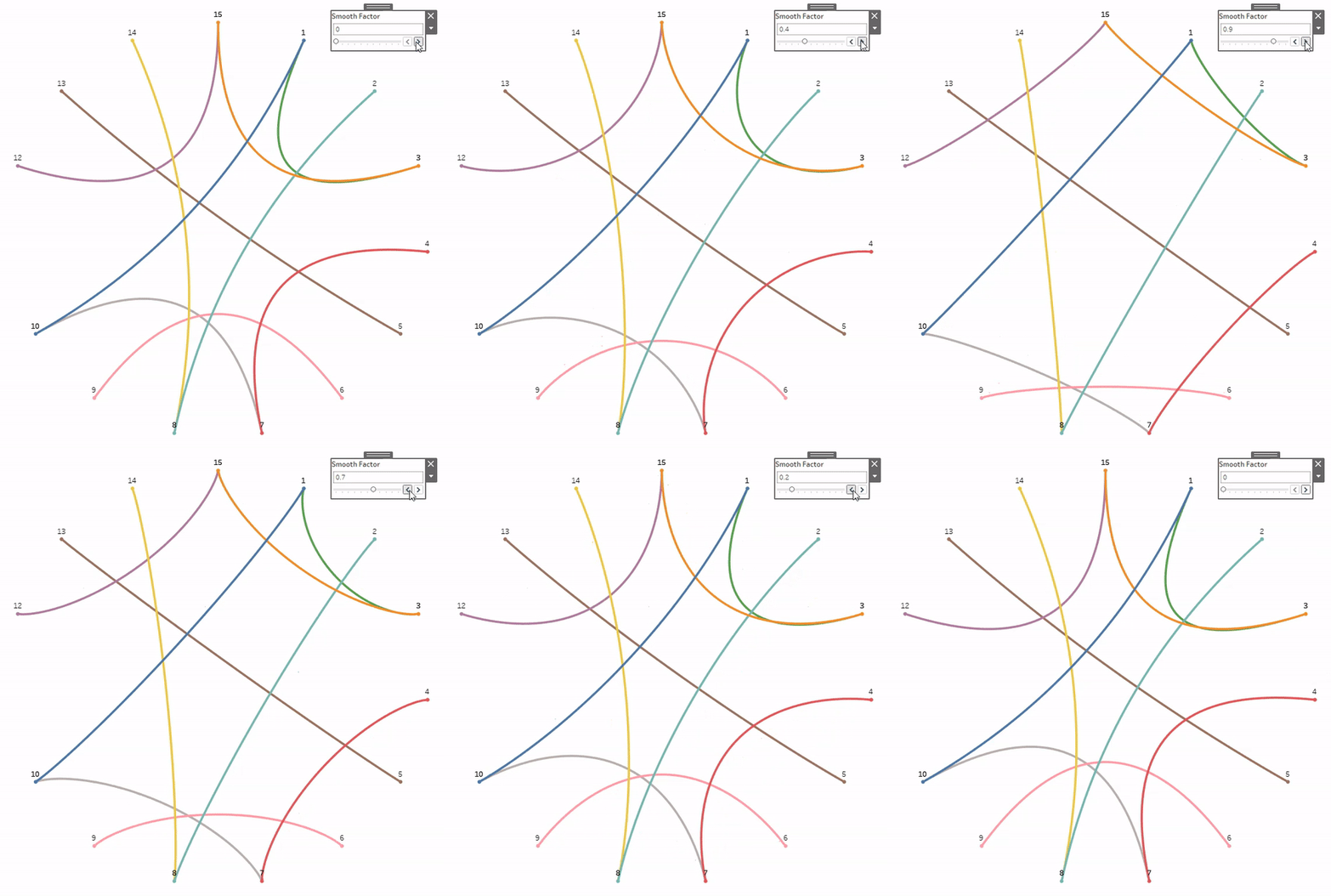
The first method will allow you to tone down the intensity of your curves and it is incredibly easy to implement. It uses a parameter to set the intensity of your curve using values from 0 (standard curve) to 1 (no curve). The height of each curve is changed proportionally (ex. .1 will reduce the height of each arc by roughly 10% from it’s standard curve height).

A gif demonstrating Method 1

Method 2: Consistent Scaling

This method allows you to create consistent curves (same arch height) for all of your lines, regardless of where the start and end points are on the circle. It’s much more complicated, but the result is pretty nice. Again, this method uses a parameter with values between 0 and 1 to set the intensity of the curve.

Method 3: Dependent Scaling

The final method allows you to set the arch height based on the length of the line, so shorter lines on the outside of the circle will have a lower arch, and longer lines going through the middle of the circle will have a higher arch. The approach is similar to Method 2, sharing many of the same calculations, and also uses a parameter with values between 0 and 1 to set the intensity of the curves.

Method 1 walk-thru

As I mentioned above, this method is incredibly easy to implement (thank you again Anne). All you need is a new parameter and a few small tweaks to the Bezier X and Y calculations. First, let’s create our parameter.

  • Create a new Parameter called “Smooth Factor”
    • Set Data type to “Float”
    • Set Current Value to 0
    • Set Allowable values to “Range”
    • Set Minimum to 0
    • Set Maximum to 1
    • Set Step size to .1
An image showing the correct parameter settings

Next, let’s modify our calculations. The only difference between the calculations discussed in the original post, and the calculations used here, are the exponents. The original calculation has an exponent of 2 in two sections of the calculation. Anne had figured out that if you replaced this exponent with a 1, you got a straight line, and if you replaced it with anything between a 1 and a 2, it would tone down the curve of the line proportionally.

Here is our original calculation for X

((1-[T])^2*[Circle_X_Start] + 2*(1-[T])*[T]*0+[T]^2*[Circle_X_End])

And here is our new calculation for X

((1-[T])^(2-[Smooth Factor])*[Circle_X_Start] + 2*(1-[T])*[T]*0+[T]^(2-[Smooth Factor])*[Circle_X_End])

The only difference between the two calculations is that we replaced ^2 with ^(2-[Smooth Factor]) in both places. That’s it. So here are our new calculated fields for X and Y and we’ll keep the naming consistent with the original post

Circle_Bezier_X_Smooth = ((1-[T])^(2-[Smooth Factor])*[Circle_X_Start] + 2*(1-[T])*[T]*0+[T]^(2-[Smooth Factor])*[Circle_X_End])

Circle_Bezier_Y_Smooth = ((1-[T])^(2-[Smooth Factor])*[Circle_Y_Start] + 2*(1-[T])*[T]*0+[T]^(2-[Smooth Factor])*[Circle_Y_End])

Now, assuming you had already created your chord chart using the original post, just replace [Circle_Bezier_X] with [Circle_Bezier_X_Smooth] and replace [Circle_Bezier_Y] with [Circle_Bezier_Y_Smooth] and you’re done. Just play around with the parameter to get the intensity of curve that you’re looking for.

Method 2 walk-thru

As I mentioned earlier, this method is a lot more complicated. It involves calculating a new mid-point for each of our lines using some geometry and trigonometry. But similar to the first method, we’ll need a parameter to set the intensity of our curves, so let’s start there.

  • Create a new parameter called “Consistent Factor”
    • Set Data type to “Float”
    • Set Current Value to .5
    • Set Allowable values to “Range”
    • Set Minimum to 0
    • Set Maximum to 1
    • Set Step size to .1

Now here comes the tricky part. And I am sure there is a much easier solution out there, but this is what I was able to come up with.

As we discussed in the original post, to draw these curved lines, we’re essentially creating a bunch of triangles and letting the Bezier X and Y calcs do the rest of the work.

A gif demonstrating that each line is basically just a triangle

Each of these triangles have a different height depending on where, around the circle, the starting point and the ending points appear. We’re using 0,0 as the mid point, so all of the triangles meet in the middle. But if we want to apply a consistent curve to all of our lines, then we need to calculate a new mid point for each of our triangles. And the result of that new mid-point calculation, should be a bunch of triangles with the same height.

You may remember from earlier posts, that in order to plot points around a circle, we need two inputs; the distance from the center of the circle, and the position around the circle. The position around the circle is much easier to calculate so let’s start there. Let’s create a calculated field called “Scale_Mid_Point_Position”

Mid_Point_Position = IF([Position_End]-[Position_Start])*360 >180 THEN (([Position_End]-[Position_Start])/2)+[Position_Start]+.5 ELSE (([Position_End]-[Position_Start])/2)+[Position_Start] END

Now this calculation looks a little complicated, but basically what it’s doing is calculating the center of the vertex angle for each of our triangles by comparing the start and end position of each of our lines. Because this is a circle, this comparison might result in an angle that is greater than 180 degrees, which isn’t possible for a triangle. Really, it just means that our starting point and ending point are farther apart (more than .5) so the direction of the triangle flips. So when that happens, we want the inverse of that position, which we can get by adding “.5” to the calculation. Otherwise, we are just subtracting the start position from the end position, splitting the difference, and then adding it back to the start position to get the position that is directly in the middle of the start and end.

Ok, if I haven’t lost you yet, let’s keep moving. Now we need to calculate the distance from the center for each of our new mid-points. To get there, first we need to calculate the height of our existing triangles (that meet in the middle at 0,0). Unfortunately, it’s not that easy. There are a lot of different ways to calculate different parts of a triangle, so we have to work with what we got. We know the length of two sides of the triangle (equal to the radius of the circle), and we know the vertex angle. That alone isn’t enough to calculate the height (as far as I know), but it gets us a step closer. With that information, we can calculate the length of the base.

First, a quick look at the parts of one of our triangles.

An image showing the different parts of a triangle, including the Height, Base, Vertex Angle, and side length

Now let’s calculate the Vertex angle, which is going to be very similar to the position calculation we just did.

Vertex_Angle = IF ([Position_End]-[Position_Start])*360 >180 then 360-(([Position_End]-[Position_Start])*360) else ([Position_End]-[Position_Start])*360 END

Now, with that, along with our circle’s radius, we can calculate the length of the base.

Tri_Base = SQRT([Radius]^2 + [Radius]^2 – 2*[Radius]*[Radius]*COS(RADIANS([Vertex_Angle])))

And now that we know the length of all three sides of the triangle, we can calculate the height.

Tri_Height = SQRT([Radius]^2 – ([Tri_Base]^2/4))

Now we have everything we need to calculate the distance from the center for each of our mid-points. We want all of our triangles to be the same height. So first, we need a consistent height to use. We can get there by multiplying our radius by our newly created Scale Factor. Our radius = 20, so if our scale factor equals 0, the height will be 0. So no curve. If our scale factor is .5, our height will be 10. Easy.

Now, if we take the height of our existing triangle, and then subtract our new standardized height, that will give us the distance from center, our second and final input.

Con_Mid_Point_Distance = [Scale_Tri_Height] – ([Radius]*[Consistent Factor])

A gif showing all triangles with a consistent height

You can see in the gif above that all triangles now have the same height.

Now we have the position and distance from center for our mid points. All that we have to do is calculate the coordinates for the mid-points using those inputs, and then plug those coordinates into our Bezier X and Y formulas.

Con_Circle_X_Mid = [Con_Mid_Point_Distance]* SIN(2*PI() * [Scale_Mid_Point_Position])

Con_Circle_Y_Mid = [Con_Mid_Point_Distance]* COS(2*PI() * [Scale_Mid_Point_Position])

Circle_Bezier_X_Con = ((1-[T])^2*[Circle_X_Start] + 2*(1-[T])*[T]*[Con_Circle_X_Mid]+[T]^2*[Circle_X_End])

Circle_Bezier_Y_Con = ((1-[T])^2*[Circle_Y_Start] + 2*(1-[T])*[T]*[Con_Circle_Y_Mid]+[T]^2*[Circle_X_End])

Now, again assuming you had already built your chord chart using the original post, just replace [Circle_Bezier_X] with [Circle_Bezier_X_Con] and replace [Circle_Bezier_Y] with [Circle_Bezier_Y_Con] and play with the parameter to get the curve intensity you want.

Method 3 walk-thru

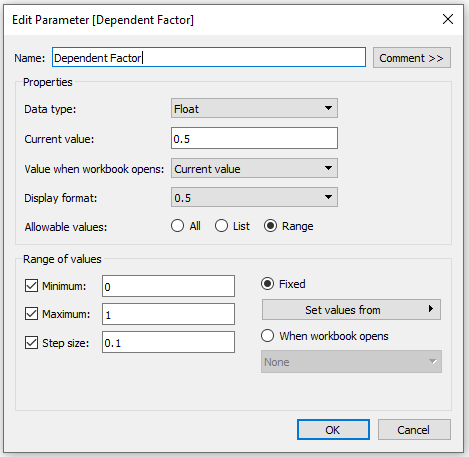
This method is going to be extremely similar to Method 2. The only thing we are changing is the value that we subtract from our triangle height to get the distance from the center for our new mid-points. If you went through Method 2 above, you are already 90% there. Like the other two methods, we need a parameter to control the intensity of our curves. Let’s create one called “Dependent” Factor”

  • Create a new parameter called “Dependent Factor”
    • Set Data type to “Float”
    • Set Current Value to .5
    • Set Allowable values to “Range”
    • Set Minimum to 0
    • Set Maximum to 1
    • Set Step size to .1

Now we need most of the same calculations that we used in Method 2. I’ll list them here again in case you haven’t already tried that method, but for explanations of these calcs, please read through method 2 in the previous section.

Mid_Point_Position = IF([Position_End]-[Position_Start])*360 >180 THEN (([Position_End]-[Position_Start])/2)+[Position_Start]+.5 ELSE (([Position_End]-[Position_Start])/2)+[Position_Start] END

Vertex_Angle = IF ([Position_End]-[Position_Start])*360 >180 then 360-(([Position_End]-[Position_Start])*360) else ([Position_End]-[Position_Start])*360 END

Tri_Base = SQRT([Radius]^2 + [Radius]^2 – 2*[Radius]*[Radius]*COS(RADIANS([Vertex_Angle])))

Tri_Height = SQRT([Radius]^2 – ([Tri_Base]^2/4))

Here is the main difference between this method and the previous one. Instead of multiplying our factor (parameter) by a consistent value, like radius, we are going to multiply it by the base length of our triangles. This will result in a higher value for longer lines, and a lower value for shorter lines. Just want to point out that I divided the base length by 2 in these calculations, to tone down the curves a little more, but that is optional. Here is the calculation for the distance from center for each of our new mid-points.

Dep_Mid_Point_Distance = [Scale_Tri_Height] – (([Scale_Tri_Base]/2)*[Scale Factor])

You can see in the gif above that the height of the triangles are now dependent on the length of their base.

Now we just need to calculate those new mid-points and plug them into our bezier X and Y calculations.

Dep_Circle_X_Mid = [Dep_Mid_Point_Distance]* SIN(2*PI() * [Scale_Mid_Point_Position])

Dep_Circle_Y_Mid = [Dep_Mid_Point_Distance]* COS(2*PI() * [Scale_Mid_Point_Position])

Circle_Bezier_X_Dep = ((1-[T])^2*[Circle_X_Start] + 2*(1-[T])*[T]*[Dep_Circle_X_Mid]+[T]^2*[Circle_X_End])

Circle_Bezier_Y_Dep = ((1-[T])^2*[Circle_Y_Start] + 2*(1-[T])*[T]*[Dep_Circle_Y_Mid]+[T]^2*[Circle_X_End])

Again, assuming you had already built your chord chart using the original post, or one of the previous methods, you just need to replace [Circle_Bezier_X] with [Circle_Bezier_X_Dep] and replace [Circle_Bezier_Y] with [Circle_Bezier_Y_Dep] and play with the parameter to get the curve intensity you are looking for.

That’s it. Three methods for controlling the intensity of your bezier curves. These certainly aren’t necessary when building out your chord charts, but they do produce some nice effects if you are looking to really customize your visualization. Personally, I lean towards Method 1 because of it’s simplicity. If you are looking for something more complicated, Method 2 and Method 3 are both nice, but if I had to pick, I would go with #3.

As always, thank you so much for reading and keep an eye on our blog for more fun Tableau tutorials.

Categories
How-To's Tableau Techniques Totally Useless Charts

Totally Useless Charts & How to Build Them – Lotus Flowers

Welcome to our new series, Totally Useless Charts & How to Build Them. In each installment of this series we’ll look at one very custom chart, something with almost no real use cases, and we’ll walk through, step by step, how to build it. The purpose of this series isn’t necessarily to teach you how to build these specific useless charts, it’s more about talking through the techniques, the approach, and the thought process behind each chart. Our hope is that seeing how we went about building these will help you with your own custom charts. But if you do somehow find a great use case for one of these charts, by all means, please download the workbook and use it as your own.

In this first installment we’re going to learn how to build Lotus Flowers in Tableau. It’s not a requirement, but it may be a good idea to review Part 1 and Part 2 of the Fun With Curves Series before proceeding. To follow along, you can download the workbook here, and the data here.

Lotus Flower

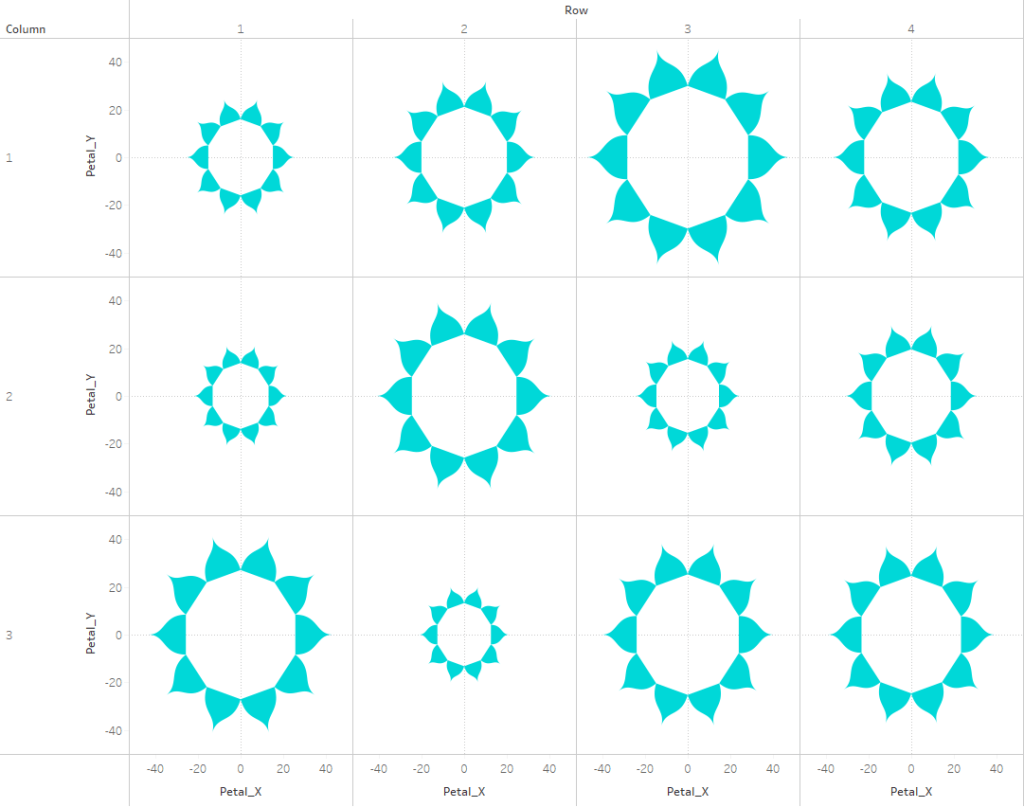
First, let’s take a look at what we’re trying to build. Below is a lotus flower with 10 petals, which means we have a total of 11 polygons; 1 circle and 10 petals. The circle is fairly easy to build using the techniques in Part 1 mentioned above. The petals are a little more complicated. But first thing’s first…we need some data.

Building Your Data Source

Let’s start with our data. For this example we’re going to build 12 lotus flowers and we’re going to use the value from our data source to size the flowers appropriately. We’ll start with the tab titled ‘Source Data’.

Next, we’re going to do some densification to get the number of polygons needed for each of the flowers. Below I have 1 record for the Circle and 24 records for the petals. We’re going to build this in a way that will let you choose how many petals you want to display (up to 24). This data can be found in the ‘Polygons’ tab in the sample data.

Now we’re going to join these two sources together using a join calculation (value of 1 on each side). The result will be 25 records for each of our 12 ‘Base’ records.

Next, we need to do a little more densification, but this time it’s a little trickier. For our circle, we want at least 50 points for a relatively smooth curve. For our petals, we actually need to draw 2 lines for each petal, one for the left side of the petal (Min) and one for the right side of the petal (Max), and then join those together. Pretty confusing right? We’ll talk about this in a lot more detail. This table is a little too large to include a screenshot, but take a look at the ‘Densification’ tab in the sample data.

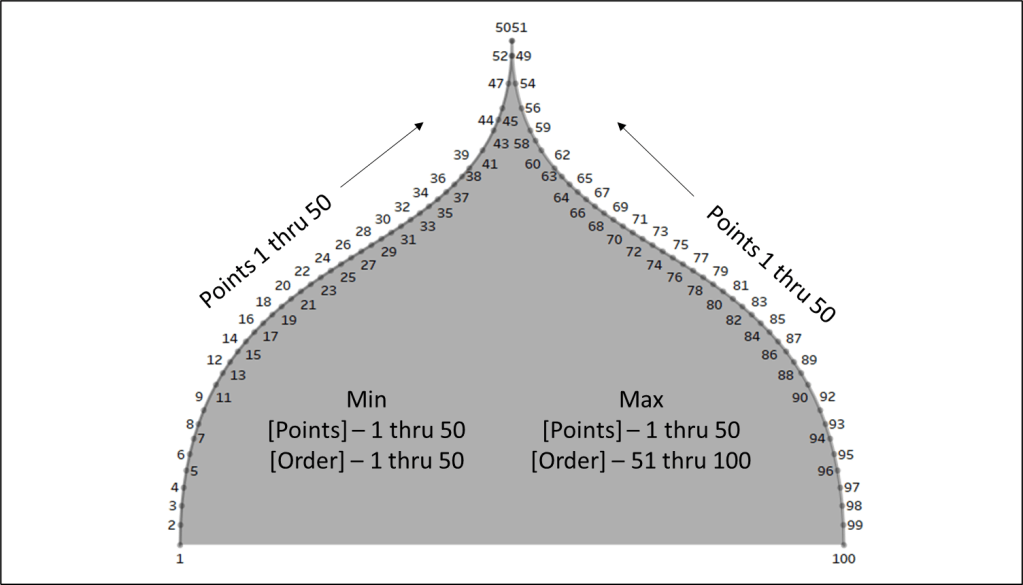
For our circles, we have 50 records. We have two numerical fields, [Points] and [Order], that both run from 1 to 50 and a [Type] field to identify that these points are for our circles. For our petals, we have 100 records. We still have the same two numerical fields, but the values are a little different. We have an [Order] field that runs from 1 to 100, and a [Points] field that runs from 1 to 50 and then back down from 50 to 1. We also have a [Side] field with values of Min or Max. The Min records will be used to draw the left side of our petals. The Max records will be used to draw the right side of our petals. And then we have a [Type] field to identify that these records are for our petals. Now we just need to join this table to our data source on the [Type] Field.

Building Your Circles

If you have read through Part 1 of the Fun With Curves series, then you may remember that in order to draw a circle in Tableau, we only need 2 inputs; the distance of each point from the center of the circle (the radius), and the position of each point around the circles (represented as a percentage).

Let’s start with the first input, the radius. We are going to size our circles based on the Value field in the Source Data. We want the area of our circles to represent the value in the data. So we have the area of each circle, we just need to use those values to calculate the radius of each circle. We can do this with the simple calculation below.

Radius = SQRT([Value]/PI())

Next, we need to calculate the position of each point around the circle. I’m not going to go into too much detail on this, but you can read more about it in the post mentioned above. To calculate this, we need the maximum number of points for our Circles (50), and we need the [Points] field (values 1 thru 50). For the max point calculation I am going to use an LOD because the max number of points for our circles, may not always align with the max number of points in our data source (but in this case it does).

Max_Point = {FIXED [PolygonType] : MAX([Points])}

Circle_Position = ([Points]-1)/([Max_Point]-1)

Next, we just need to plug the [Radius] and the [Circle_Position] values into our X and Y formulas for plotting points around a circle.

Circle_X = [Radius]* SIN(2*PI() * [Circle_Position])

Circle_Y = [Radius]* COS(2*PI() * [Circle_Position])

Now, let’s draw our circles

  • Right click on [Circle_X] and drag it to columns. When prompted, choose [Circle_X] without any aggregation
  • Right click on [Circle_Y] and drag it to rows. When prompted, choose [Circle_Y] without any aggregation
  • Right click on [Base_ID], change it to a Dimension, and drag it to Detail
  • Right click on [Order], change it to a Dimension, and drag it to Path
  • Drag [Type] to Filter Shelf and filter to ‘Circle’
  • Change the Mark Type to Polygon

Now you should have something that looks like this.

Although it looks like one big circle, we actually have all 12 circles in this view. They’re just stacked on top of each other. So next we need to space these out a little bit. There are a lot of different techniques to do this, but here’s one I like to use to create Trellis Charts. This technique works great when you have a sequential ID field, which we do (Base_ID).

First, we’re going to create a numeric parameter that will allow us to choose the number of columns we want to create. We’ll call the parameter [Column Count] and set the value to 3. Next, we’re goin to use the [Base_ID] field to break our circles into columns and rows, starting with row.

Row = CEILING([Base ID]/[Column Count])

Column = [Base ID]-(([Row]-1)*[Column Count])

Now right click on both of these fields, change them to Dimensions, and then drag them to the appropriate shelf (Row to Rows, Column to Columns). The result should look something like this.

Building Your Petals

Alright, so this part is a little more complicated. I’m going to start by reviewing the basics of how you build these shapes, but I’m going to skim over the calculations since those will change significantly once we try to build these petals around our circle. No need to follow along with the workbook during this section.

So here are the basics. Let’s start by drawing a Bezier Curve with 4 control points. Our line is going to start at 0,0 and end at 5,10. Wow, this is easy, we already have the coordinates for 2 of the points!

Let’s take a look at our inputs. Our line will have a height of 10 and a width of 5. I’ve also built 2 parameters that we’ll use to calculate the 2nd and 3rd set of points. You can experiment with different values here, but these seem to work pretty well. We need a total of 8 values (4 sets of X and Y).

  • Point 1 will be the start of the line. In this case, it’s 0,0
  • Point 2 will appear on the same X axis as Point 1, but will be somewhere between the start and end of the line on the Y axis. I like to place it two thirds of the way, or .67 (the value in the P2 Parameter Input above). So the coordinates for Point 2 will be 0 and 6.7 (P2 Parameter x Height of the line)
  • Point 3 will appear on the same X axis as Point 4, and will appear somewhere between the start and end of the line on the Y axis (similar to P2). I like to place it halfway, or .5 (the value in the P3 Parameter Input above). So the coordinates for Point 3 will be 5 and 5 (P3 Parameter x Height of the line).
  • Point 4 will be the end of the line. In this case, it’s 5,10

If you were to plot these 4 points, you would have a jagged line like you see in the image above. But look what happens when we plug those values into our Bezier calculations

X = (1-[T])^3*[P1_X] + 3*(1-[T])^2*[T]*[P2_X] + 3*(1-[T])*[T]^2*[P3_X] + [T]^3*[P4_X]

Y = (1-[T])^3*[P1_Y] + 3*(1-[T])^2*[T]*[P2_Y] + 3*(1-[T])*[T]^2*[P3_Y] + [T]^3*[P4_Y]

Alright, we are halfway there! Kind of. So now we have a line that will create 1/2 of one of our petals. But in order to turn this into a petal shaped polygon, we need another line that’s a mirror image of this one.

This is where the Min and Max records come in. We need to calculate our 4 sets of coordinates for both sides. Luckily, most of the values are actually the same. P3 and P4 are going to be identical for both lines. And the Y values for P1 and P2 are the same. The only differences are the X values for P1 and P2. And to calculate those we just add the width of the whole petal (width x2) to our starting point. And if we were to plug these coordinates into the same calculations, we have this.

Now this is where the [Order] field comes into play. To make this one single polygon instead of two separate lines, we can use the [Order] field on Path and change the Mark Type to polygon

On the Left (Min) side, we have points 1 thru 50, running from the bottom left up to the top middle. On the right (Max) side, we have points 1 thru 50 running from the bottom right up to the top middle. But then we have the [Order] field (on label in the image above). This field runs from the bottom left to the top middle to the bottom right, in one continuous flow, from value 1 to 100. This is what makes it a single continuous polygon.

Ok, so that’s how we would build 1 single petal shaped polygon, perfectly positioned facing directly upward. But that’s not what we’re trying to do. We’re trying to build a dynamic number of petals, evenly spread around a circle and facing outward in the appropriate directions. So let’s do that.

Building Your Petals (for real this time)

We’re going to use a similar approach to what was described above, but everything needs to be plotted around a circle. So any calculations we use to determine our 4 points are going to have to run through those X and Y calculations for plotting points around a circle. That means, for all of our points, P1 thru P4 for both sides, we need to calculate two things; the distance from the center of the circle, and the position around the circle. But before we calculate those specific points there are a few other calculations that we’ll need. We also need a parameter, called [Petal Count] that will allow us to select how many petals we want. This should be a numeric parameter, and let’s set the value to 10 (I recommend using a range, allowing values from 4 to 24)

T = ([Points]-1)/([Max_Point]-1) – this is the same as the [Position] calc used earlier. It’s used to evenly space points between 0% and 100%

Petal_Count_Filter = [Polygon ID]<=[Petal Count] – this will be used as a filter to limit the number of petals displayed to what is selected in the [Petal Count ] parameter

Petal_Width = 1/[Petal Count] – this calculates the total position around the circle that will be occupied by each petal. For example, if there were 10 petals, each one would occupy 1/10 of the space around the circle, or .10

Petal_Side_Position = IF [Side]=’MIN’ THEN ([Polygon ID]-1)*[Petal_Width] ELSE [Polygon ID]*[Petal_Width]
END
– this calculates the position of the start of each Min line and Max line. If there were 10 petals, the Min side of the 2nd petal would be at position .1 or (2-1)*.1, and the Max side of the petal would be at position .2, or 2*.1. The Min value will share the same position as the Max value of the previous petal. The max value will share the same position as the Min value of the next petal

Petal_Middle_Position = ([Polygon ID]/[Petal Count]) – ([Petal_Width]/2) – this calculates the position of the center of each petal. If there were 10 petals, the center of petal 3 would be at .25, or (3/10) – (.1/2). This is also halfway between the position of the Min line and the Max line.

Alright, now we can calculate all of our coordinates. Let’s start with P1. For the first input, we want this point to start right at the edge of our circle. So the distance from the center is going to be equal to the radius of the inner circle. So the first input is just [Radius]. For the second input, we’ll use the the [Petal_Side_Position] we calculated above.

P1_X = [Radius]* SIN(2*PI() * [Petal_Side_Position])

P1_Y = [Radius]* COS(2*PI() * [Petal_Side_Position])

If we were to plot these points for 12 petals, we would end up with 24 points, but it would appear that we only 12 because each is overlapping with another point. But this gives us the outside edges of each of our petals

Now onto P2. This one is a little more complicated. We’re going to use P1 as a starting point for this calculation, instead of the center of the inner circle. Now we need to calculate the distance from P1 where we want our next point to appear. First, we need to determine the length of the entire petal. I like to use a parameter for this so I can dynamically adjust the look of the flowers. So let’s create a parameter called [Petal_Length_Ratio]. This is going to be a number relative to the radius, so a ratio of 1 would set the length of the petal equal to the radius of the circle. A value of .8 would set the length of the petal equal to 80% of the radius, and so on. I usually go with a value somewhere between .5 and 1. We’ll use this along with the radius, so that the petals of each flower are sized appropriately based on the size of their inner circle. Next, we need to position this point somewhere between the start of the line and the end of the line. As I mentioned earlier, I like to place it two thirds of the way (P2_Parameter from the previous section). So the first input, the distance from P1, is going to be the radius x the length ratio x the P2 parameter. For the second input, we’re going to use the [Petal_Middle_Position] because we want this side of the line to follow the same path as the line with P3 and P4. If we were to use the [Petal_Side_Position] field, we would end up with really wide, strange looking petals. This will probably make more sense a little further along. For now, let’s plug those values into our X and Y calcs.

P2_X = [P1_X] + (([Radius] * [Petal_Length_Ratio] * [P2_Parameter]))* SIN(2*PI() * [Petal_Middle_Position])

P2_Y = [P1_Y] + (([Radius] * [Petal_Length_Ratio] * [P2_Parameter]))* COS(2*PI() * [Petal_Middle_Position])

P3 is a little more straight forward. For the first input, we’re going to calculate the distance from the center of the inner circle. And then we’ll use a similar approach to what we did for P2. The first input will be the radius + (the radius x the length ratio x the P3 parameter). As I mentioned in the earlier section, I like to set this parameter to .5. And once again, we’re going to use the [Petal_Middle_Position] field for the second input.

P3_X = ([Radius]+([Radius] *[Petal_Length_Ratio] * [P3_Parameter]))* SIN(2*PI() * [Petal_Middle_Position])

P3_Y = ([Radius]+([Radius] *[Petal_Length_Ratio] * [P3_Parameter]))* COS(2*PI() * [Petal_Middle_Position])

P4 is almost identical to P3, except we don’t need the length ratio. We want this point to appear at the end of the line. So we can just remove that from the calc.

P4_X = ([Radius]+([Radius] * [Petal_Length_Ratio])) SIN(2*PI() * [Petal_Middle_Position])

P4_Y = ([Radius]+([Radius] * [Petal_Length_Ratio])) COS(2*PI() * [Petal_Middle_Position])

We’re almost there! If we were to plot these points for the first petal in our lotus flower, it would look like this. It looks very similar to what we reviewed in the previous section, but with one very important difference…everything is at an angle…which is what we wanted.

All that’s left to do is to plug all of these points in our Bezier calcs and then build our polygons!

Petal_X = (1-[T])^3*[P1_X] + 3*(1-[T])^2*[T]*[P2_X] + 3*(1-[T])*[T]^2*[P3_X] + [T]^3*[P4_X]

Petal_Y = (1-[T])^3*[P1_Y] + 3*(1-[T])^2*[T]*[P2_Y] + 3*(1-[T])*[T]^2*[P3_Y] + [T]^3*[P4_Y]

Now the polygons. Let’s build this as a Trellis chart, just like we did with the Circles. So drag [Row] on to Rows and [Column] onto Columns. And then;

  • Right click on [Petal_X] and drag to Columns. When prompted, select [Petal_X] without aggregation
  • Right click on [Petal_Y] and drag to Rows. When prompted, select [Petal_Y] without aggregation
  • Drag [Type] to Filter Shelf and filter to ‘Petal’
  • Drag [Petal_Count_Filter] to Filter Shelf and filter to TRUE. Right click and ‘Add to Context’
  • Drag [Polygon_ID] to Detail
  • Drag [Order] to Path
  • Change Mark Type to Polygon

We’re so close! Your sheet should look like this

The only thing left to do is to combine the Circle polygons with the Petal Polygons. We have separate data for them, all we need to do is get them on the same sheet. So we’ll create two more simple calcs to bring it all together.

Final_X = IF [Type]=’Circle’ THEN [Circle_X] ELSE [Petal_X] END

Final_Y = IF [Type]=’Circle’ THEN [Circle_Y] ELSE [Petal_Y] END

Now just replace [Petal_X] and [Petal_Y] with [Final_X] and [Final_Y] and drag [Type] from the filter shelf on to Color and you should have your lotus flowers!

The Final Touches

The hard part is done, now to make it look pretty. Play around with some of the parameters until you get the look that you like. Adjust the [Petal Count], the [Column_Count], the [Petal_Length_Ratio], and even the [P2_Parameter] and [P3_Parameter] if you wanna get crazy.

Next, throw some color on there. You could make the color meaningful to encode some data, or you could do what I just did and color it randomly. I used the calc below and then just assigned one of the color palettes I have saved.

Color = [Type] + STR([Base ID])

And that’s it! If you made it this far, please reach out and let me know what you thought, and what you came up with. Thank you so much for reading, and keep an eye on the blog for more ‘Totally Useless Charts & How to Build Them’

Categories
How-To's

Fun With Curves in Tableau Part 2: Bezier Curves

This is part two of a three-part series on creating curved elements in Tableau. Although this post covers new and different techniques, I would recommend checking out part one of the series here as some of the concepts overlap. This post will focus on one type of curved line that is used frequently in Tableau Public visualizations; Bezier Curves. To follow along, you can download the sample data and workbook here.

Bezier Curves

There are many types of Bezier curves varying in complexity from very simple to ridiculously complicated. One commonality with these types of curves is that they rely on ‘control points’. This post is going to focus on quadratic Bezier curves, which have 3 control points. An easy way to think about these points is that there is a starting point, a mid point, and an end point, creating a triangle. The starting point and end point are simply the start and end of the line. The other point, the mid point, will determine the shape of the triangle, and in turn, what that curve is going to look like. Now let’s see how the position of that mid point (creating different types of triangles) will affect the curve.

Each of the triangles above have the same starting point (1,0) and the same end point (10,0), but have significantly different curves because of the varying mid point. For most applications in Tableau we’re going to be dealing with examples like Example 1 and Example 4 in the image above, where the mid point is halfway between the other points, creating an isosceles triangle. To make things even easier for this example, we’re going to deal with just Example 1, which is an equilateral triangle, meaning all 3 sides are the same length.

Building Your Data Source

To build our data source we are going to follow the same process that we did in Part 1 of this series. We are going to create additional points by joining our sample data to a densification table using join calculations (value of 1 on each side of the join). In this case, our sample data is called Bezier_SampleData and our densification data is called BezierModel. You can download the sample data here. In our sample data we have 10 records that we’ll use to draw 10 unique curves. For simplicity sake, all of these curves will start and end at 0 on the Y axis.

Building Your Calculations

To draw our curves there are a few things we’ll need to calculate. Our sample data has 2 of the 3 points we need (starting point and end point), so we’ll need to calculate the X and Y values for the 3rd point (mid point). Let’s start there.

We discussed above that we are going to use equilateral triangles to draw our curves. In that case, the X value for the mid-point will be halfway between [X_Start] and [X_End] and the Y value will be the height of the triangle plus the starting point. Here is an example

To find the X value that falls in the middle of [X_Start] and [X_End], just add them together and divide by 2

X_Mid

([X_Start]+[X_End)/2

To find the Y Value add the Y starting point to the height of the triangle. To find the height of the triangle, use the formula (h=a*3/2) where a is the length of one of the sides of your equilateral triangle. To find that length subtract [X_Start] from [X_End]

Y_Mid

[Y_Start] + (([X End]-[X Start])*SQRT(3)/2)

Now, we have 3 points for each record in our data set. We have our starting point ([X_Start],[Y_Start]), our end point ([X_End],[Y_End]), and our mid point ([X_Mid],[Y_Mid]). If we were to stop here and plot those points, it would look something like this, 10 equilateral triangles of different sizes, all on the Y axis (because we had used 0 for all of the [Y_Start] and [Y_End] values)

Now let’s convert those points into Bezier curves. The first calculation we’ll need is [T]. T is going to be a percentage value that is equally spaced between 0 and 1 for the number of points in our densification table. Think of this as similar to the [Position] calc in Part 1 of this series, but slightly different because we need our first point to start at 0.

T

([Points]-1)/{MAX([Points])-1}

No matter how many points you add to your densification table, this calculation will spread them evenly between 0 and 1. This field is used to evenly space our points along our curved line. When complete, your T values should look like this. The value for point 1 should be 0%, the value for the last point should 100% and all of the points in the middle should be equally spaced between those

Now all that is left is to calculate the X and Y coordinates for each point along our curved lines. The calculations for X and Y are exactly the same, but in the [Bezier_X] calc you are using the 3 X values, and in the [Bezier_Y] calc you are using the 3 Y values

Bezier_X

((1-[T])^2*[X_Start] + 2*(1-[T])*[T]*[X_Mid]+[T]^2*[X_End])

Bezier_Y

((1-[T])^2*[Y_Start] + 2*(1-[T])*[T]*[Y_Mid]+[T]^2*[Y_End])

Now let’s build the curves in Tableau

Build Your Curves

Follow the steps below to build your curves

  • Right click on the [Bezier_X] field, drag it to columns, and when prompted, choose the top option ‘Bezier_X’ without aggregation
  • Right click on the [Bezier_Y] field, drag it to rows, and when prompted, choose the top option ‘Bezier_Y’ without aggregation
  • Change the Mark Type to ‘Line’
  • Right click on the [Points] field, drag it to Path, and when prompted, choose the top option ‘Points’ without aggregation
    • This tells Tableau what order to ‘connect the dots’ in.
  • Drag [Line Name] to color

When you finish, your worksheet should look something like this

Or you can change the Mark Type to ‘Polygon’ and reduce the Opacity and it will look like this

Now this is a relatively simple example. You can get really creative with how you calculate those 3 points, especially the ‘mid’ point. Let’s do one more example, combining the work we’ve done in this exercise with what we had done in Part 1 of the series. The result should look pretty familiar.

First, let’s take our X values and plot them in a circle, instead of on a straight line. From Part 1 of this series, we know that in order to plot points around a circle, we need 2 inputs for each point; the Radius (the distance from the center of the circle), and the Position (the position around the circle expressed as a percentage). Since we want all of our points to be equally distant from the center, we can use a single value for the radius of all points. Let’s create a parameter called [Radius] and set the value to 10. For Position, we’ll need to calculate the position for each start and end point. For the position calculations we’ll need to first find the maximum number of points around our circle, or in this case, the max value of the [X_Start] and [X_End] fields together. Looking at our data, we can see the maximum value of the [X_Start] field is 12 and the maximum value of the [X_End] field is 15. So our Max Point will be 15

Max_Point

{MAX(MAX([X_Start],[X_End]))}

Next, we’ll use that value to calculate the position around the circle for each start and end point

Position_Start

[X_Start]/[Max_Point]

Position_End

[X_End]/[Max_Point]

Now, we can calculate the X and Y coordinates for the starting point and end point of every line, using the same calculations we used in Part 1 of the series. Let’s begin with the starting points

Circle_X_Start

[Radius]* SIN(2*PI() * [Position_Start])

Circle_Y_Start

[Radius]* COS(2*PI() * [Position_Start])

And now we’ll calculate the X and Y coordinates for the end points using the same formulas but swapping out the [Position_Start] field, with the [Position_End] field.

Circle_X_End

[Radius]* SIN(2*PI() * [Position_End])

Circle_Y_End

[Radius]* COS(2*PI() * [Position_End])

Now for each of our lines, we have two sets of coordinates. We have the coordinates for the start of our line ([Circle_X_Start],[Circle_Y_Start]) and the coordinates for the end of our line ([Circle_X_End],[Circle_Y_End]). All we need now is that 3rd set of coordinates, the mid-point. The good news is, when plotting these around a circle, we have a very convenient mid-point…the middle of the circle. In this case, because our circle is starting at (0,0), we can use those values as our 3rd set of points. Let’s take our 3 sets of coordinates and plug them into the Bezier calculations we used earlier

Circle_Bezier_X

((1-[T])^2*[Circle_X_Start] + 2*(1-[T])*[T]*0+[T]^2*[Circle_X_End])

Circle_Bezier_Y

((1-[T])^2*[Circle_Y_Start] + 2*(1-[T])*[T]*0+[T]^2*[Circle_Y_End])

Now in our view if we replace the [Bezier_X] and [Bezier_Y] fields with the [Circle_Bezier_X] and [Circle_Bezier_Y] fields, we get something like this…the foundation of a chord chart

This chart uses the same exact calculations for the curved lines, we just used some additional logic to calculate the coordinates for the start and end points. In our first example, for Line 2, we drew a curved line between 3 and 15 on the X axis. The coordinates for our start and end point were (3,0) and (15,0) respectively. Then we calculated the coordinates for our mid point, which ended up being (9,10.4)

In this last example, we also drew a curved line between 3 and 15, but instead of those points being on the same Y axis, they were positioned around a circle. We used what we learned in Part 1 of this series to translate those X values (3 and 15) into coordinates around a circle. So the coordinates for our start and end positions ended up being (9.5,3.1) and (0,10) respectively. And instead of calculating our mid-point, we used the center of the circle (0,0).

These are just a few basic examples of what you can do with Bezier curves, but there are so many possibilities. Here are a few examples of where I’ve used Bezier Curves in my Tableau Public Profile.

Thank you so much for reading, and keep an eye out for the third and final part of this Series, focusing on Sigmoid curves.

Update on 11/1/2022

We have added another post that expands on this topic. This post walks through three different methods for controlling the intensity of the Bezier Curves. Check out the post below.

Fun With Curves in Tableau Part 2+: Controlling Bezier Curves